 RapidRAW
Adding Camera Tethering to RapidRAW
How I integrated real-time camera control and why Windows users are out of luck.
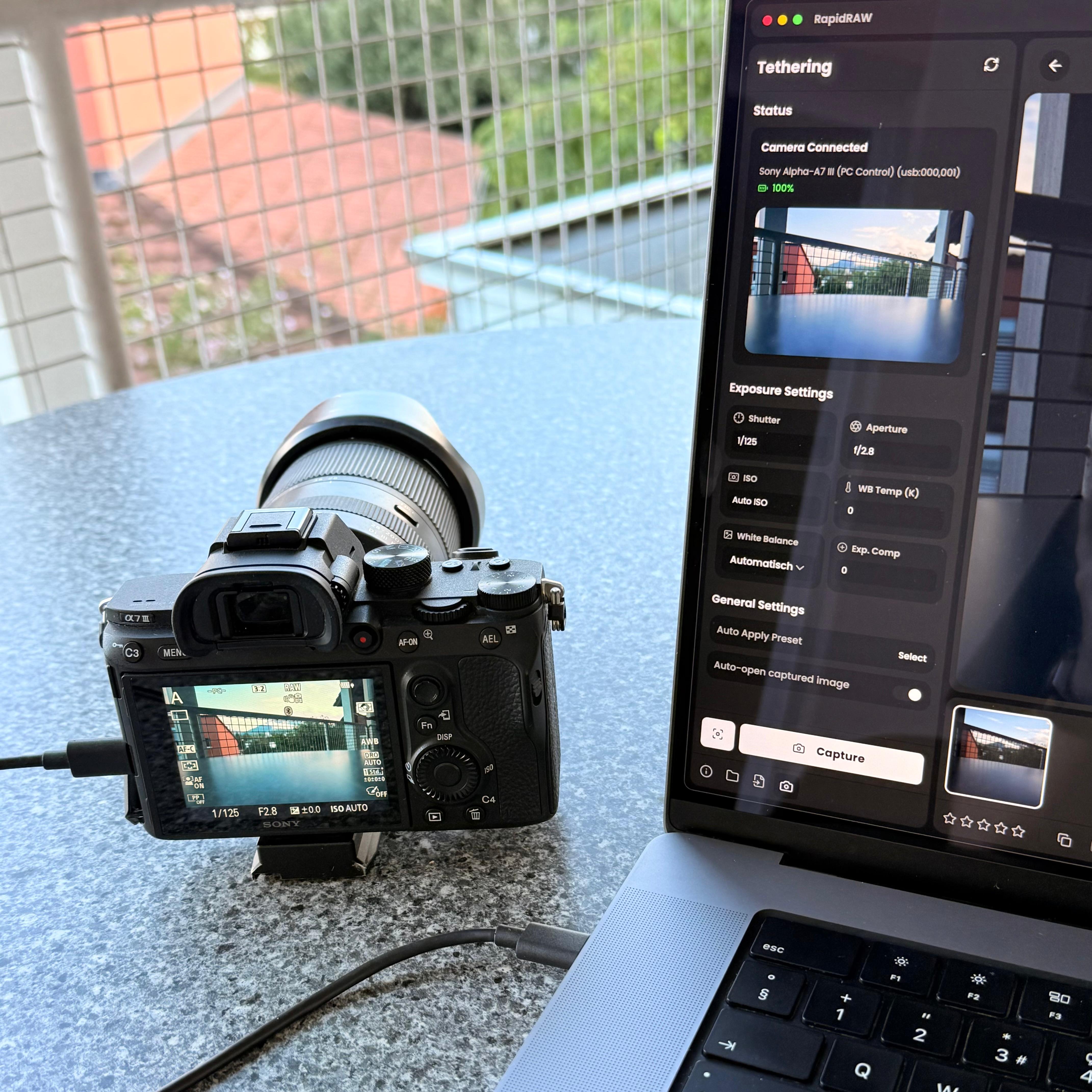
If you shoot in a studio or do product photography, tethering is incredibly useful. Instead of taking a photo, looking at a tiny screen on the back of your camera, and guessing if the focus is right, you connect the camera directly to your computer with a USB cable.
You get a live view right on your monitor. You can change your shutter speed, aperture, and ISO from your keyboard. When you take the shot, the RAW file is instantly sent into your editor.
I wanted this in RapidRAW for a long time. But talking to hardware is messy, and it required breaking one of my biggest rules.
The Dependency Trap
To make tethering work with hundreds of different camera models, developers rely on an open source library called libgphoto2. It is an amazing project, but it is a system level C library. It needs to be installed deeply into your operating system to work.
Up until now, you download the app, you double click it, and it just works.
If I linked RapidRAW directly to libgphoto2, the application would simply crash on startup for anyone who did not have that library installed on their machine. I could not let that happen. The core app needs to stay lightweight and standalone for the majority of users.
The Split Architecture
The solution was to create a split build system.
If you look at the latest release page, you will see the standard versions of RapidRAW, and you will also see specific _tethering versions for macOS and Linux.
If you want to use tethering, you have to open your terminal and install the libgphoto2 dependencies yourself using Homebrew or apt. After that, you download the tethering build of RapidRAW. This keeps the standard app clean for 95 percent of users, while still giving studio photographers the tools they need.
The Windows Problem
You might notice Windows is completely missing from that list. This is where hardware development gets frustrating.
First of all, libgphoto2 is built for POSIX environments like Linux and macOS. It simply is not available on Windows at all.
On top of that, Windows handles USB connections completely differently. The operating system aggressively claims any connected camera using its native driver system called WPD (Windows Portable Devices). To even attempt running low-level USB tools on Windows, you would have to use third party tools to forcefully overwrite your camera drivers with generic ones. If you do that, normal file transfers break and your camera stops working properly with the rest of your system.
Because of this driver mess and the total lack of native libgphoto2 support on Windows, I decided to leave it unsupported. Sometimes you have to say no to a feature if the platform makes it too ugly to implement.
Building the Workflow
Once the connection was working on Mac and Linux, building the actual interface was a lot of fun. I added the real-time live view and full control over exposure settings.
I also built a "Ghost Overlay" feature. You can take a photo, make it semi-transparent, and overlay it on top of your live view. If you are doing product photography and you accidentally bump your tripod, you can use the ghost image to line everything back up perfectly. You can also tell the app to automatically apply a specific color preset the exact second the image transfers over the cable.
Since I am a solo developer, I could only test this entire system on my own Sony A7III. The underlying library supports thousands of cameras, but they all behave a little differently. If you have a Canon, Nikon, Fuji, or Panasonic, and you decide to test the tethering build, please drop a message on GitHub or Discord and let me know how it goes!
See you in the next update.
Back to all posts