 RapidRAW
Editing 300 Photos Without Touching a Slider
Why I built Speed Edit, how it works, and how I use it to get through a few hundred photos with one hand on the keyboard.

Editing one photo is fun. Editing three hundred is work.
When you edit a single photo, you take your time. You try a few looks, open masks, play with the curves. But after a wedding, an event or a long trip, the job is different. Most photos only need small fixes: a bit brighter, a bit warmer, the horizon a little straighter. The hard part isn't knowing what to change. It's the hundreds of tiny trips with the mouse: find the slider, grab it, drag, look back at the photo, go to the next one, find the slider again.
That's the part I wanted to get rid of. RapidRAW has always been about being fast, but fast rendering is only half of it. The other half is how fast you can work. So in v1.6.8 I added Speed Edit.
Hold W and drag
Speed Edit turns the whole photo into a slider. Hold W and drag anywhere on the image: right or up makes the value go up, left or down makes it go down. A small display next to the cursor shows which slider you are changing and its value, so your eyes never have to leave the photo.
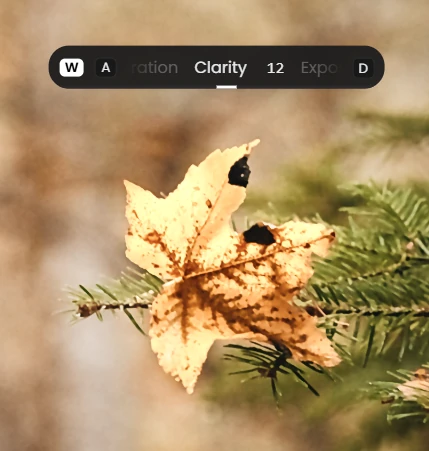
Your left hand does the rest:
AandDswitch to the previous or next slider.QandEgo to the previous or next photo.Rresets the slider.CandVcopy and paste a single slider value.←and→change the value one step at a time, andShiftorAltwhile dragging gives you fine control.
If you don't want to hold the key down, tap W once and Speed Edit stays on until you tap it again or press Escape. That's how I use it for longer sessions.
The keys are placed on purpose. Q W E and A S D sit right under your fingers, the same way they do in a game. You never have to look down, and your right hand stays on the mouse the whole time.
Only the sliders you use
Nobody needs every slider for a quick pass through a shoot. So you choose which ones Speed Edit steps through, in Settings → Controls → Speed Edit. By default it's Exposure, Contrast, Highlights, Shadows, Temperature, Tint, Saturation and Rotation. These are the ones that usually differ from photo to photo. Whites, Blacks, Vibrance, Clarity, Dehaze, Structure and Vignette are there too, just switched off.
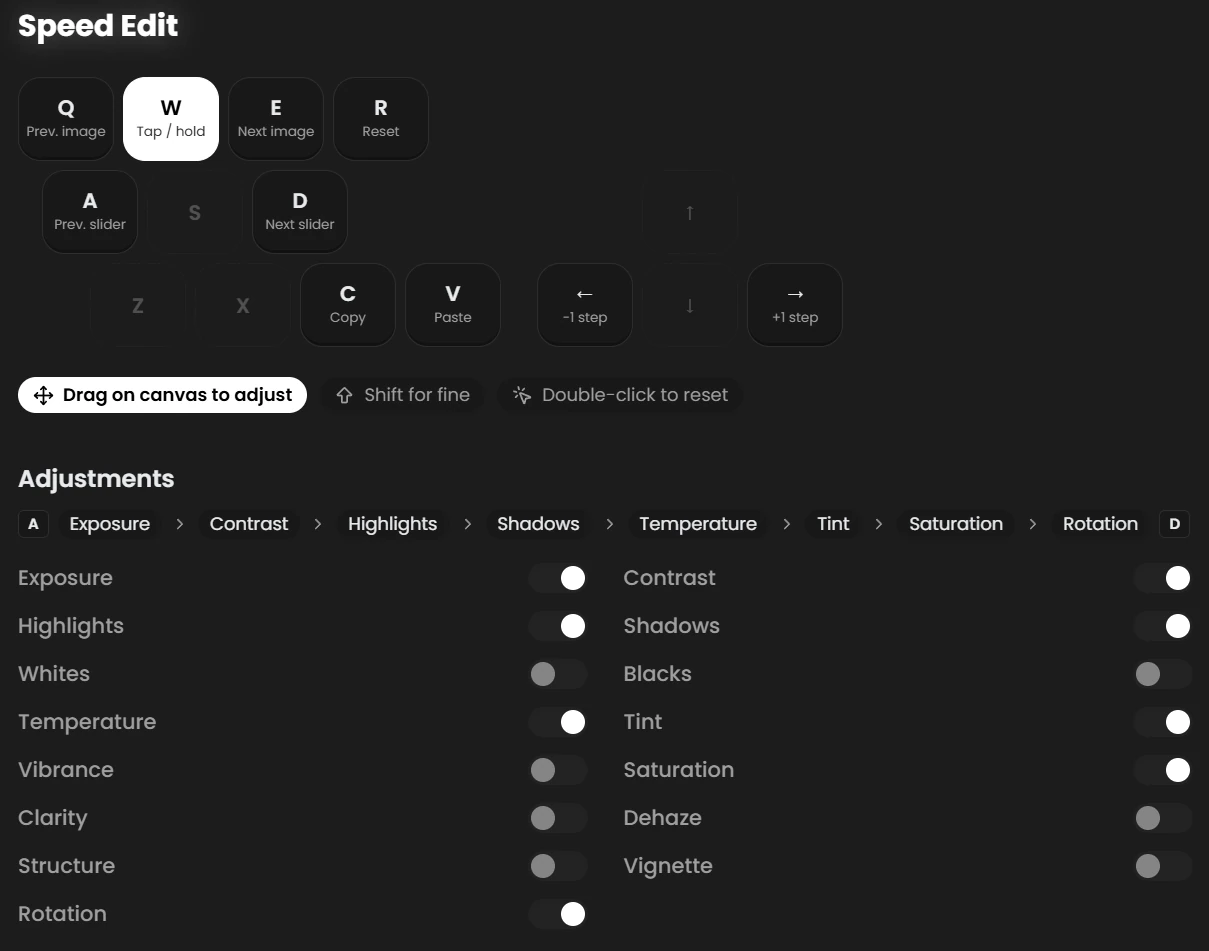
The fewer sliders you keep on, the fewer times you press D to get where you want. If you only ever fix exposure and white balance, turn the rest off and every slider you need is one key press away.
Editing a shoot
Here is the workflow Speed Edit was made for. Say you have 200 photos from an event, all shot in similar light.
- Cull first. Only edit the photos you'll keep. Flag the keepers, reject the rest, and filter down to the picks.
- Build a base. Edit one typical photo the normal way, with as much care as you like. Then copy its settings with
Ctrl+C, select the others and paste withCtrl+V. Now every photo starts from a good place. - Turn on Speed Edit. Open the first photo and tap
W. Left hand onQ W EandA S D, right hand on the mouse. - Fix only what's different. For each photo:
- Drag until the exposure looks right.
- Press
Dto get to Highlights if the sky is too bright. - PressDagain to get to Temperature if the light was warmer or cooler on this one. - Next photo. Press
E. The same slider stays selected, so for a series where only the exposure changes, you just drag and pressE, drag and pressE. - Same fix for a few photos? Press
Con the first one, go to the next withEand pressV. - Done. Tap
Wto turn Speed Edit off, and export.
The nice thing is that you stay in one rhythm. Drag, check, next. Drag, check, next. There's no moment where you search the panel for a slider, and no moment where you lose the photo out of sight.
It also helps that RapidRAW now loads the next photos in the background while you work. So when you press E, the next photo is usually already there.
Editing should get out of the way
Speed Edit is part of a bigger idea I keep coming back to: the editor should get out of your way, so you can spend your time on the photo and not on the interface.
A few other changes in v1.6.8 come from the same thought:
- A second window. Press
Shift+Fto open your edit in its own window, for example on a second monitor. It updates live while you move sliders. With Speed Edit you can keep the panels on one screen and see the photo large on the other. - Readable history. Every step in the undo history now has a clear name with its value, like "Exposure +0.35", so you can find the step you want to go back to.
- Faster switching. Preloading and faster slider updates mean less waiting between photos.
None of this is flashy. But when you edit a few hundred photos, the small things add up. A second saved on every photo is a few minutes on a shoot, and more importantly, it keeps you in the flow.
Try it
Speed Edit is in RapidRAW v1.6.8. Open a photo, hold W and drag. The full guide, with all the keys and tips, is in the docs: Speed Edit.
If you have ideas for making it even faster, or a slider you'd like to see in the list, let me know on Discord or open an issue on GitHub.