 RapidRAW
Speed Edit
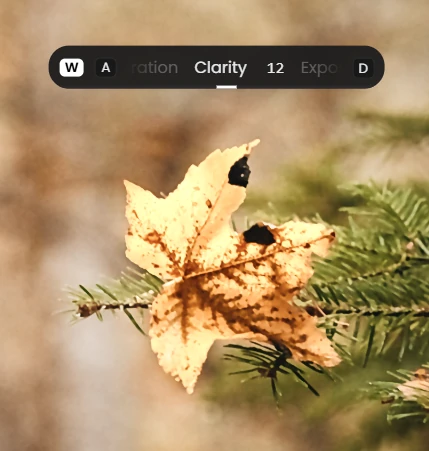
Speed Edit lets you change a slider without touching the panel. Hold W and drag anywhere on the photo: the current slider moves, and a small display next to the cursor shows its name and value. With A and D you jump to the previous or next slider, and with Q and E to the previous or next photo.
Use it when you edit many photos in a row, for example a wedding, an event or a holiday folder. Your eyes stay on the photo, and one hand stays on the keyboard.
Turn it on
There are two ways:
- Hold
W. Speed Edit is on while you hold the key and turns off when you let go. Good for a quick change. - Tap
Wonce. A short tap (less than a quarter of a second, without pressing anything else) locks Speed Edit on. A small W badge in the display shows that it is locked. TapWagain or pressEscapeto turn it off. Good for longer sessions, because you don't have to keep the key down.
Speed Edit only works in the editor, and not while you type in a text field or have Settings open.
Change a slider
- Open a photo in the editor.
- Hold or tap
W. The display appears next to the cursor with the current slider, for example Exposure. - Drag with the left mouse button anywhere on the photo. Drag right or up to raise the value, left or down to lower it.
- Let go of the mouse. The change is saved like any other edit and can be undone with
Ctrl+Z.
A drag of about 400 pixels covers the whole slider range. Hold Shift or Alt while dragging for fine control: the slider then moves five times slower.
Which slider moves? The last slider you clicked or dragged in the panel. If you haven't touched one yet, Speed Edit starts with the first slider of the open panel (usually Exposure).
Read the display
- Middle: the current slider and its value.
- Left and right: the previous and next slider, with the
AandDkeys next to them. - Bar along the bottom: how far the value is from the middle of the slider.
- W badge: Speed Edit is locked on.
When you copy or paste a value, the display briefly shows Copied or Pasted with the slider and value.
Keys
These keys are fixed and can't be changed. Letters follow your keyboard layout. While Speed Edit is on, they replace the normal shortcuts on the same keys (for example D no longer opens the Adjust panel, and E no longer opens Export).
| Key | What it does |
|---|---|
W |
Hold for Speed Edit, or tap once to lock it on. Tap again to turn it off. |
| Drag on the photo | Change the current slider. Right or up raises it. |
Shift or Alt while dragging |
Fine adjustment (one fifth of the normal speed). |
A / D |
Previous / next slider. |
Q / E |
Previous / next photo. |
← / → |
Lower / raise the slider by one step. Hold the key to keep going. |
R |
Reset the slider to its default. |
| Double-click the photo | Reset the slider to its default. |
C |
Copy the value of the current slider. |
V |
Paste the copied value onto the same slider, for example on the next photo. |
Escape |
Turn Speed Edit off. |
One step is the smallest change of that slider: 0.01 for Exposure, 0.1° for Rotation, and 1 for the others (50 K for Temperature when it shows Kelvin).
Choose the sliders
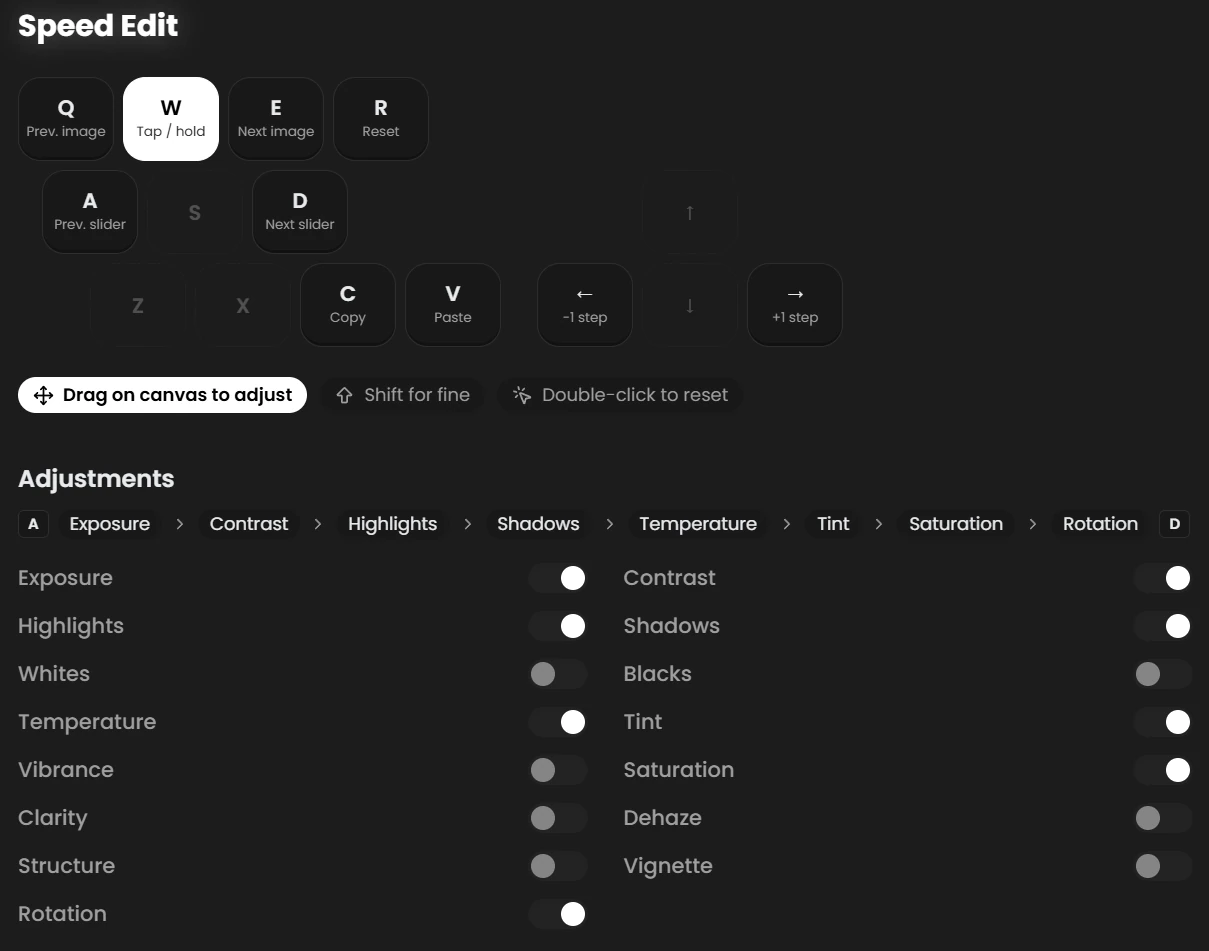
Open Settings → Controls → Speed Edit. The Adjustments list has a switch for each slider Speed Edit can use. Above it you see the current order between the A and D keys.
| On by default | Off by default |
|---|---|
| Exposure, Contrast, Highlights, Shadows, Temperature, Tint, Saturation, Rotation | Whites, Blacks, Vibrance, Clarity, Dehaze, Structure, Vignette |
A and D only step through the sliders of the open panel, from top to bottom, and wrap around at the end. In the Adjust panel that means the tone and color sliders. Rotation lives in the Crop panel, so you reach it there. Turn off the sliders you never use, so you need fewer key presses.
Clicking any slider in the panel also makes it the current Speed Edit slider, even one that is not in the list.
Example: edit a shoot quickly
Say you have 200 photos from an event, shot in similar light.
- Cull first, so you only edit keepers. See Cull and Rate a Shoot.
- Edit one typical photo the normal way, then copy its settings (
Ctrl+C), select the others and paste (Ctrl+V). See Copy & Paste Settings. Now every photo starts from a good base. - Open the first photo and tap
Wto lock Speed Edit on. Keep your left hand onQ W EandA S D, and your right hand on the mouse. - For each photo, fix only what differs from the base:
- Exposure: drag until the subject looks right.
-
Dto Highlights if the sky is too bright. -Dto Temperature if the light was warmer or cooler on this one. - Press
Efor the next photo. The same slider stays selected, so for a series where only exposure changes, you just drag and pressEagain. - If several photos need the same correction, press
Con one, go to the next withEand pressV. - Tap
Wwhen you are done. Then export.
RapidRAW loads the next photos in the background while you work, so Q and E feel almost instant.
Tips
- Use
Shiftwhile dragging for exposure and white balance. Small changes matter most there. - Use
←/→when you want an exact value, for example Rotation in 0.1° steps. - Press
Ror double-click when you went too far and want to start the slider over. ↑/↓and the mouse wheel still zoom while Speed Edit is on, so you can check details without leaving it.- Open a second window on another monitor to see the photo large while you edit.