 RapidRAW
AI & Masks
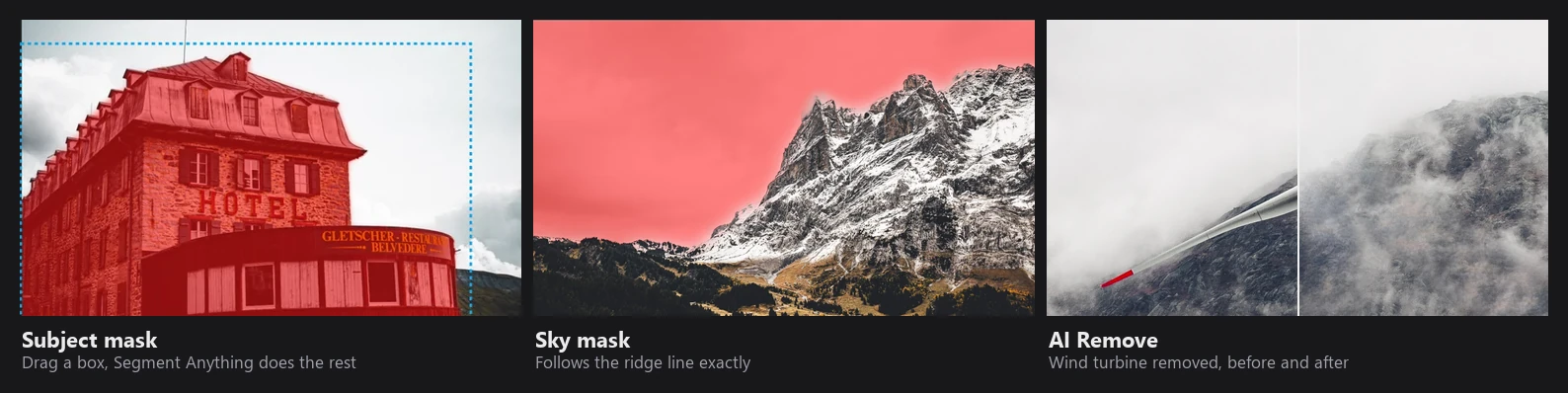
All AI features in RapidRAW run locally with ONNX Runtime, except the optional generative Replace through RapidRAW Cloud or your own AI Connector server. Models are downloaded the first time a feature needs them.
Runtime
- ONNX Runtime 1.22, bundled with the app.
- GPU acceleration: DirectML on Windows (the high-performance GPU is chosen), Core ML on macOS. Linux runs the models on the CPU.
- If a model fails on the GPU, RapidRAW logs it, switches all AI models to the CPU for the rest of the session and continues. Changing the AI GPU setting resets this.
- Models come from the RapidRAW-Models repository on Hugging Face. Each file is checked against a fixed SHA-256 hash after downloading, and re-downloaded if it doesn't match. Downloads are written to a temporary file first, so an interrupted download never leaves a broken model.
| Feature | Model | Input size | Runs on |
|---|---|---|---|
| Subject mask, Quick Eraser | Segment Anything (SAM ViT-B) | 1024 | CPU |
| Foreground mask | BiRefNet (general, lite) | 1024 | GPU when possible |
| Sky, text prompt, face detection | EfficientSAM3 | 1008 | GPU when possible |
| Face parts | MediaPipe Face Landmarker and Selfie Multiclass | 256 | CPU |
| Depth mask, Lens Blur, Fog | Depth Anything V2 (small) | 518 | GPU |
| Relight | MoGe-2 normals (small) | up to 768 | GPU when possible |
| AI Denoise | NIND UTNet | 504 tiles | GPU |
| AI Remove | LaMa (fp16) | up to 768x768 | CPU |
| Auto tagging | CLIP | 224 | GPU when possible |
On macOS, only Depth Anything and AI Denoise use Core ML; the other models run on the CPU there.
What the models see
Mask models look at the unedited, geometry-corrected image: your lens correction and transform are applied, but not your color and tone edits. So a mask doesn't change when you edit the photo, and it's recalculated when you change the geometry. Crop, rotation and flips are stored with the mask and applied when it's drawn, so cropping never needs a new mask.
Each AI result is stamped with a source id: a hash of the file size and its first and last 64 KB. If the file changes, the result is marked stale and regenerated in the background. Renaming or moving the file keeps it valid.
Background jobs
When you paste settings, apply a preset or sync edits to photos that aren't open, the AI parts (masks, AI Denoise, depth and normal maps) are queued and generated in the background. The photo open in the editor always goes first. The queue survives a restart, and failed jobs are retried up to three times. Exports wait for any missing AI results of the photos being exported.
Subject mask (Segment Anything)
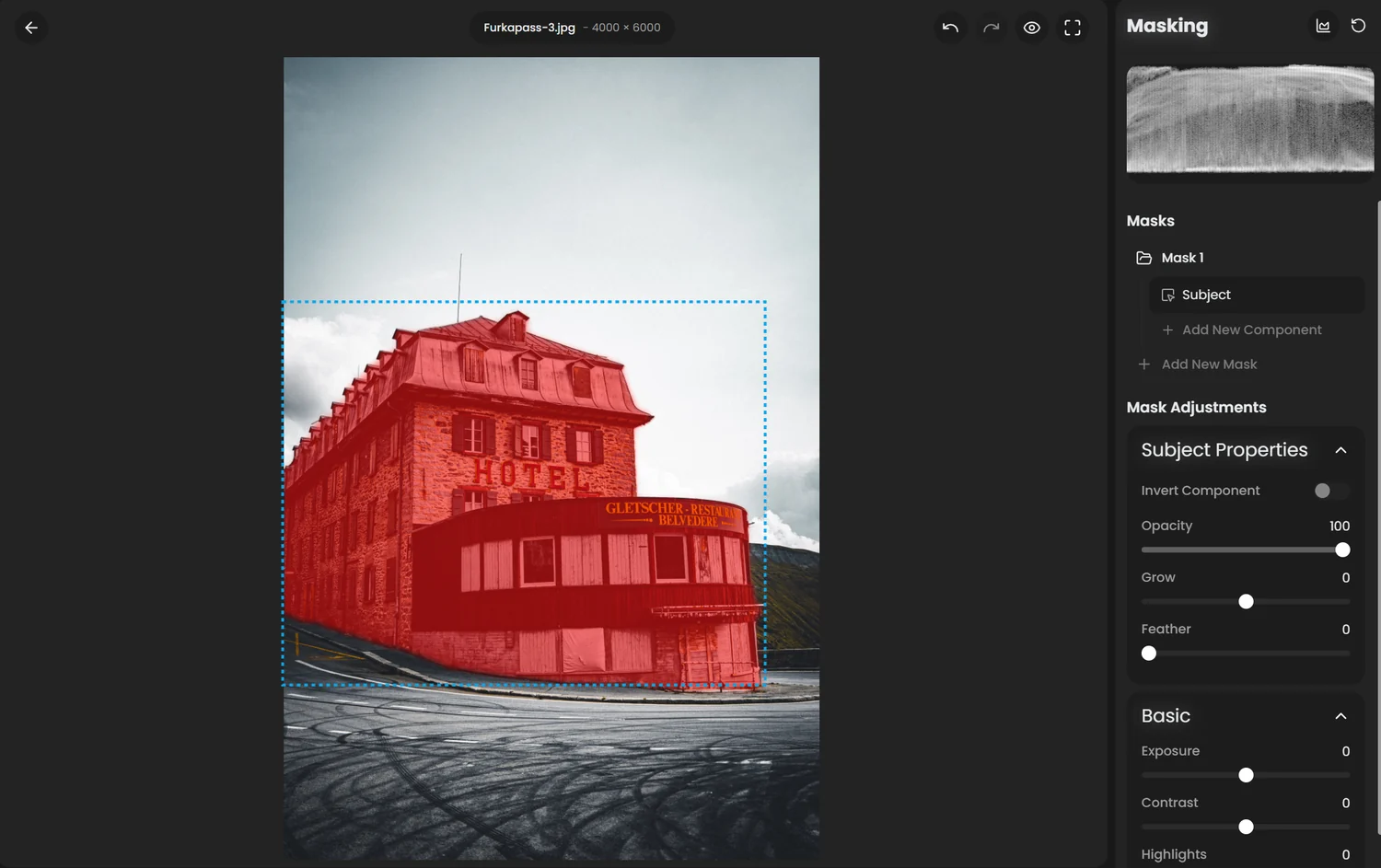
- The image is scaled so the long side is 1024 px, and SAM computes an image embedding. This happens when you choose the Subject tool, so the actual selection is fast.
- Your box is passed as two corner points (or a click as one foreground point).
- Second pass: RapidRAW takes the first result and adds more hints automatically: the point deepest inside the mask as an extra foreground point, the largest hole inside the bounding box as a background point, the mask's bounding box, and the first mask itself as a prior. SAM then runs again. This fixes most missing parts and holes.
- Edge refinement: the mask is upscaled to full resolution and refined with a guided filter using the photo's luminance (radius 0.75% of the long edge, 8 to 24 px). This makes the edge follow hair and fine outlines.
A box is more accurate than a click because it tells the model both what the subject is and how big it is.
Foreground mask (BiRefNet)
BiRefNet finds the main subject without any input. It runs at 1024x1024. If the subject is small (less than 60% of the frame), RapidRAW runs it a second time on a zoomed-in crop around the subject, and blends that sharper result in with soft edges if it agrees with the first one.
Sky, text prompt and face detection (EfficientSAM3)
EfficientSAM3 is a promptable segmentation model. RapidRAW uses it in three ways:
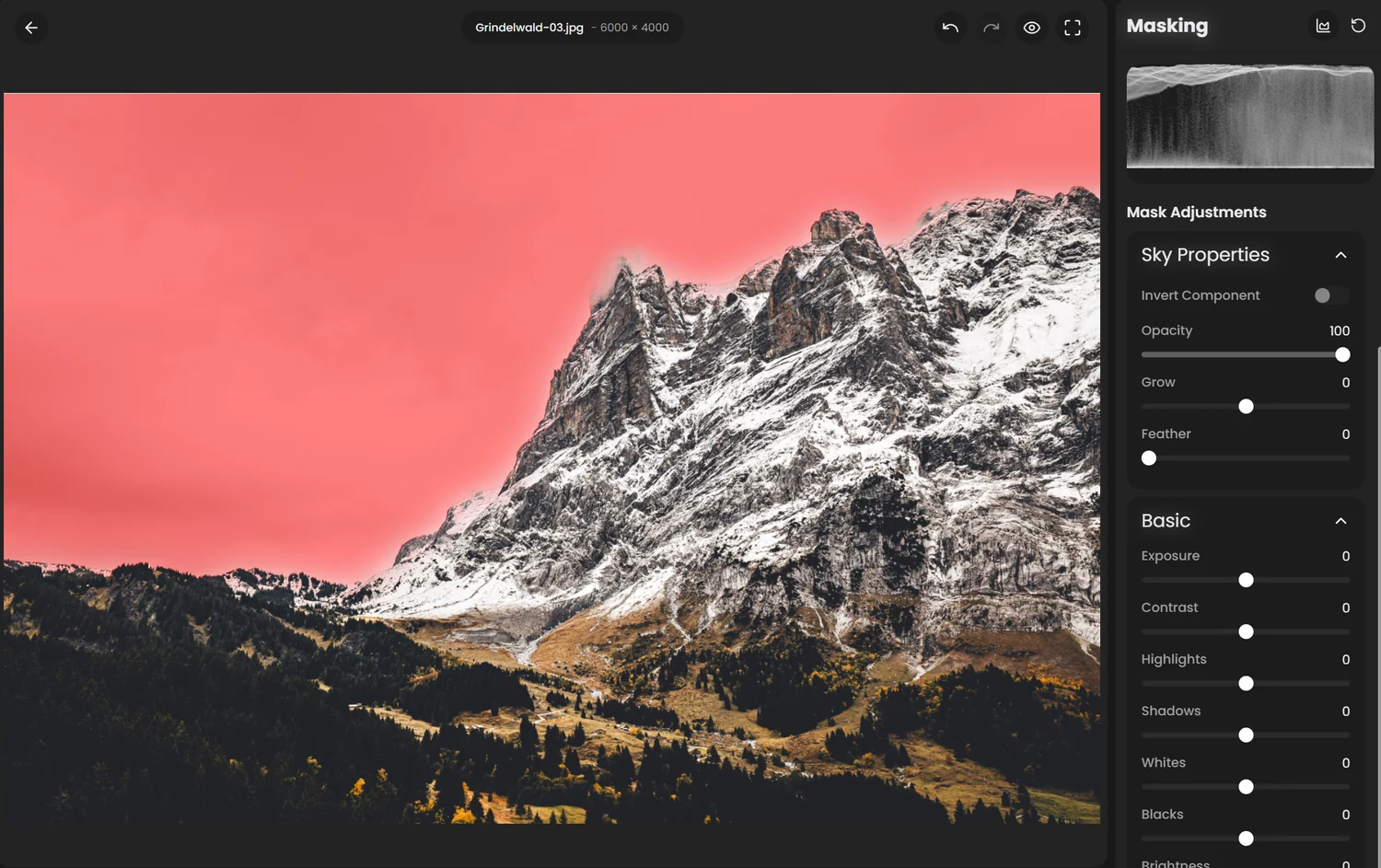
- Sky: a stored "sky" prompt. Matches above a score of 0.6 are combined, then refined at full resolution with a color guided filter (radius 16), so the edge follows trees and buildings.
- Text prompt (for example "red car" or "dog"): your text is tokenized with the CLIP tokenizer (up to 16 tokens) and encoded. Results above a score of 0.3 are used, with the same refinement and a zoomed second pass for small objects.
- Faces: a stored "face" prompt returns face boxes for the Face mask.
Face parts
For each face box:
- Landmarks: MediaPipe Face Landmarker finds 478 points (including the irises). The face is straightened using the eye corners and the fit is repeated up to four times. Each box is tried in four orientations, so sideways faces work.
- Segmentation: a selfie segmentation model finds hair, face skin and body skin.
- Parts:
| Part | How it's built |
|---|---|
| Eyebrows, Lips, Nose | Polygons from the landmarks |
| Eye whites | Eye shape minus the iris |
| Iris | Circle from the iris landmarks, clipped by the eye |
| Teeth | Inside the lips, pixels brighter and less saturated than the lips |
| Hair | Segmentation model |
| Face skin | Segmentation inside the face outline, minus eyes, brows and lips |
| Body skin | Segmentation of the whole image |
Every part is refined with a color guided filter, so edges are soft but follow the real outline.
Depth mask
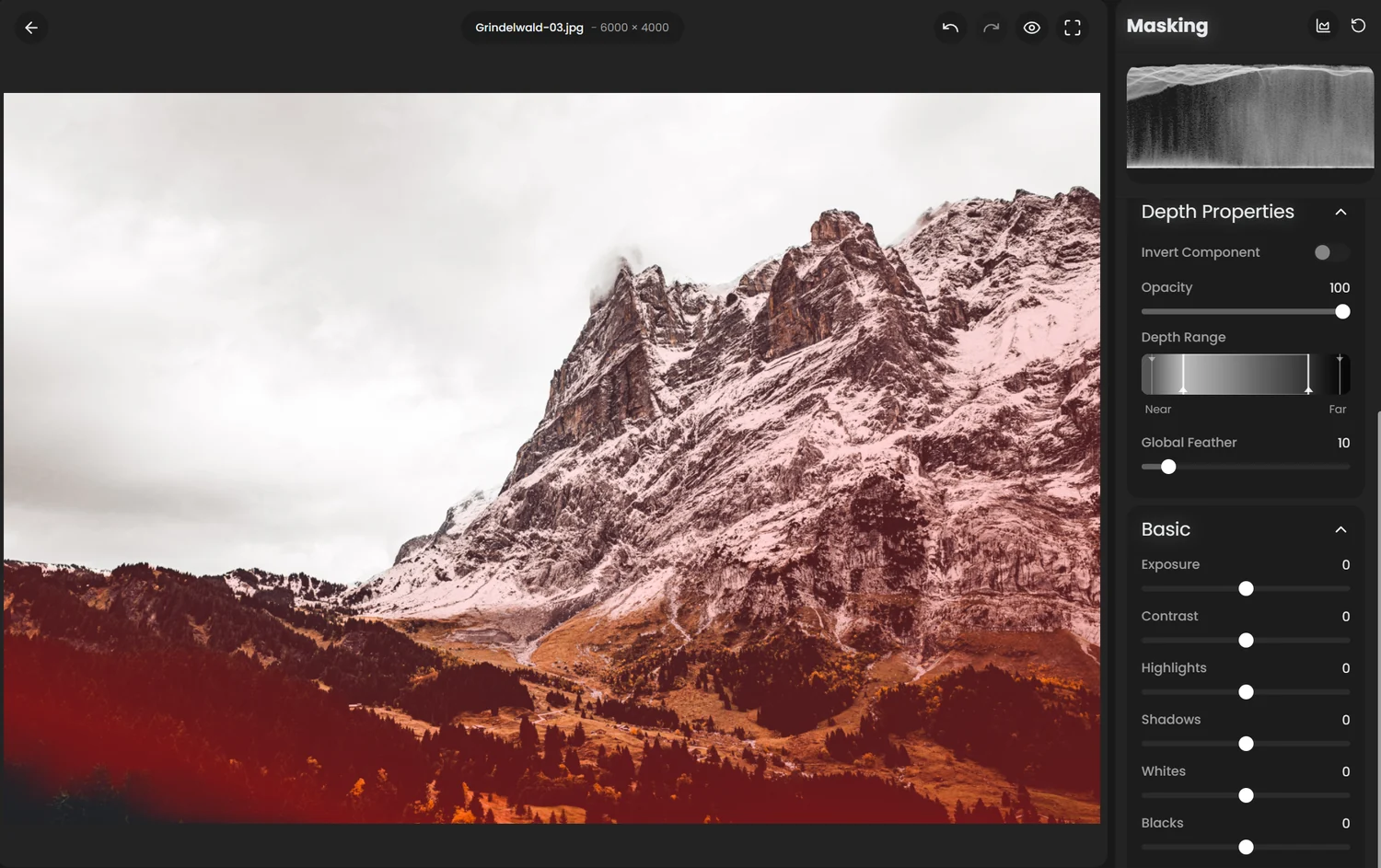
Depth Anything V2 estimates relative depth (bright = near) at 518 px, normalized from 0 to 100 for each photo. The mask uses the range sliders:
mask = smoothstep(min − minFade, min, d) · (1 − smoothstep(max, max + maxFade, d)) · d/100
The last term means nearer areas get a slightly stronger mask.
Manual masks
- Brush: each stroke is drawn as a smooth capsule (no stamped dabs). Inside
radius · (1 − feather)it's 100%, then it falls off with a smoothstep. Strokes are combined like layers of light:a + b − a·b. - Flow brush: each stroke adds
flowpercent, so overlapping strokes build up: after n strokes,1 − (1 − flow)^n. - Radial: a linear falloff from the inner ellipse (set by feather) to the outer ellipse.
- Linear: a linear ramp across the gradient width, 50% on the center line.
- Color range: RGB distance to the picked color, with tolerance
T: full at the color, zero at distance√3·T. - Luminance range: luma distance to the picked brightness, zero at distance
T.
The color and luminance pickers sample the unedited image, so the selection doesn't move while you edit.
Grow dilates or erodes by up to 1% of the short side; Feather blurs with a Gaussian of up to 0.5% of the short side.
Combining masks
Inside a mask, each component is combined with the result so far, in order:
| Mode | Operation |
|---|---|
| Add | max(a, b) |
| Subtract | max(a − b, 0) |
| Intersect | min(a, b) |
Invert and opacity are applied per component and again for the whole mask. Subtract and Intersect need a component above them to work on.
How masks affect adjustments is explained in Tone & Color → Masks.
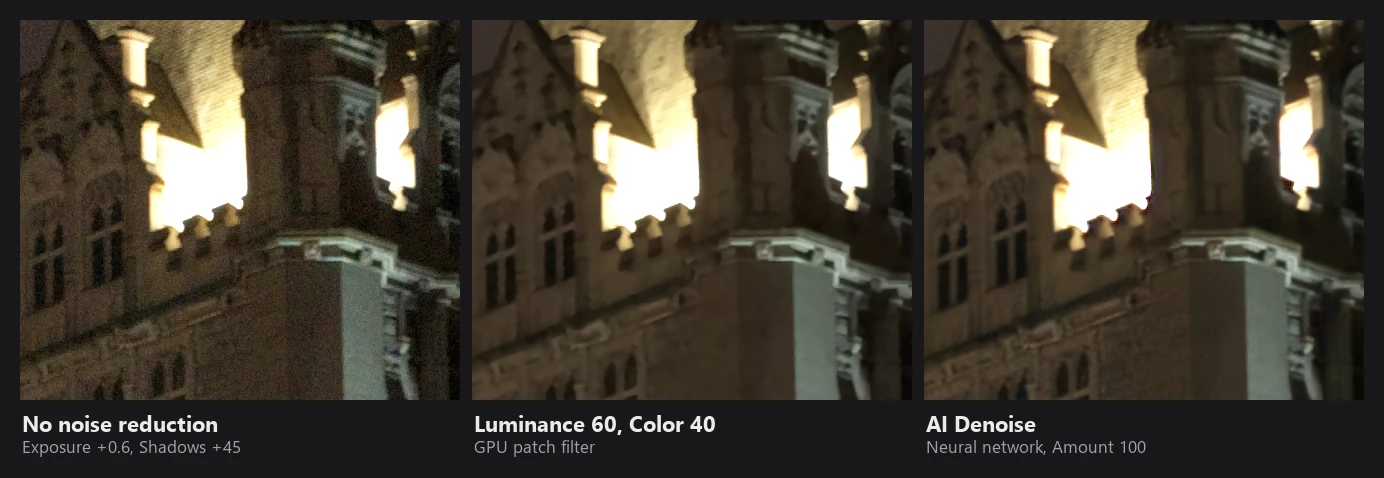
AI Denoise
Model: NIND UTNet, a U-Net trained on the Natural Image Noise Dataset (real camera noise at different ISOs).
- The image is processed in 504 px tiles. The outer 12 px of each tile are discarded, and neighbouring tiles overlap by 64 px with a smooth blend, so there are no visible seams. Edges are mirrored.
- Highlights above 1.0 (which the network can't represent) are passed through unchanged, so highlight detail and HDR headroom are kept.
- Low-frequency restore: the difference between input and output is averaged over 64 px blocks and added back. So the network can only remove fine noise; it can't shift colors or brightness over larger areas.
- The result is stored in a disk cache (half precision, up to 10 GB by default) and in memory.
Amount and Detail are applied live without running the model again:
removed     = original − denoised
luma part   = Rec.709 luma of removed
output      = denoised + (1 − amount)·(removed − luma part) + (1 − amount·(1 − detail))·luma part
So Detail only brings back luminance grain, never color noise. That's why it looks natural even at high values.
AI Denoise works best on RAW files, because the model sees the linear sensor data before any processing. On JPEGs the noise has already been changed by the camera's processing.
Classic denoise (BM3D)
The non-AI option uses BM3D:
- similar 8x8 blocks within a 19x19 search window are grouped (up to 16);
- each group is transformed with a 2D DCT plus a Walsh–Hadamard transform across the group;
- small coefficients are removed in a hard-threshold pass, then a Wiener-filter pass refines the result.
It works in YCbCr with stronger filtering on chroma. A little fine luma detail is added back at the end. It's slower and softer than AI Denoise but needs no model download.
AI Remove and retouching
All retouching tools create a patch: a small image plus a mask, stored in the edit and blended into the photo before geometry and all adjustments. So you can still change everything else afterwards. RAW files are retouched in sRGB and converted back to linear when the patch is applied.
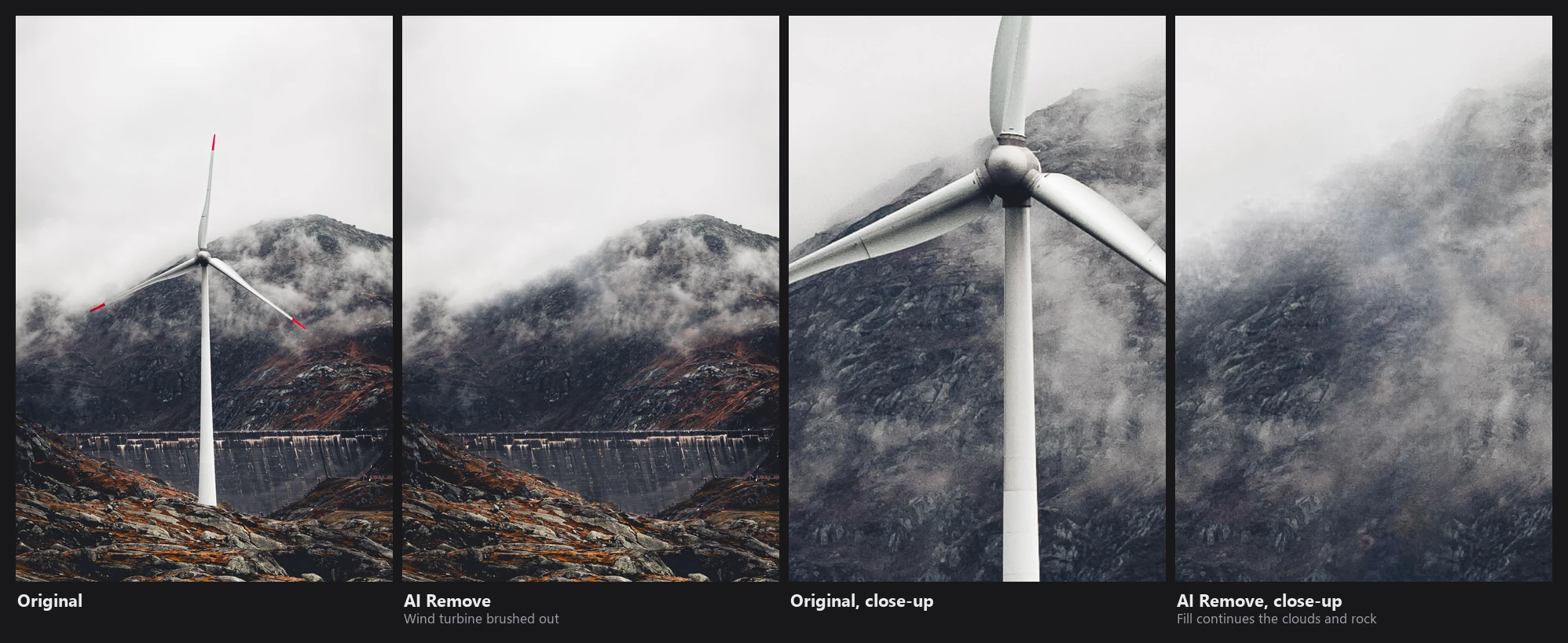
AI Remove (LaMa):
- A crop around the mask is taken, with at least 128 px (or 1.5x the object size) of context.
- It's scaled down to fit 768x768 if needed and filled by LaMa on the CPU.
- If it was scaled down, the result is upscaled with bicubic interpolation, and real full-resolution texture is added back: PatchMatch (7x7 patches, 6 iterations) finds where each filled pixel's content best matches the surrounding photo, and copies the fine grain and detail from there. This prevents the smooth, plastic look of upscaled inpainting.
Clone copies pixels with a whole-pixel offset (no resampling, so no softening).
Heal clones, then corrects colors and brightness to match the surroundings by solving the Laplace equation on the difference (Poisson blending, 400 iterations of over-relaxation). The texture comes from the source; the tone comes from the destination.
Generative Replace sends a crop (up to 1.5 megapixels) and the mask to RapidRAW Cloud, or the source and mask to your own AI Connector server. Only the masked area of the result is used.
Liquify builds a displacement field from your strokes (push, pinch, expand, twirl or reconstruct, with a raised-cosine falloff) and resamples the image bilinearly.
Skin retouch applies an edge-preserving bilateral filter inside the brushed area, with strength controlled by intensity. There's no frequency separation, so it's best used gently.
Auto tagging (CLIP)
CLIP compares the thumbnail (224 px) with about 590 built-in labels or your custom tags. Labels with a probability above 0.5% are kept, sorted, together with their parent categories (for example "woman" also adds "person"), up to the number of tags set in Settings. Up to two dominant color tags are added from a simple HSV analysis.