 RapidRAW
Immich
Immich is a popular self-hosted photo server. RapidRAW can connect to it, so you can browse your Immich library, open and edit photos as if they were on your disk, and upload finished exports back. Your edits are saved in Immich, so they look the same on every computer you use.
Requires Immich 2.5 or newer. Not available on Android.
Setting it up
- In Immich, open Account Settings → API Keys and create a new key. Give it at least these permissions:
album.read,albumAsset.create,albumAsset.delete,asset.read,asset.view,asset.download,asset.upload,asset.update,asset.delete,stack.read,stack.createanduser.read. - In RapidRAW, open Settings → General → Immich.
- Enter the Server address (for example
https://photos.example.com) and the API key. - Click Test connection. You should see "Connected as ..." with your user name and Immich version.
- Click Save.
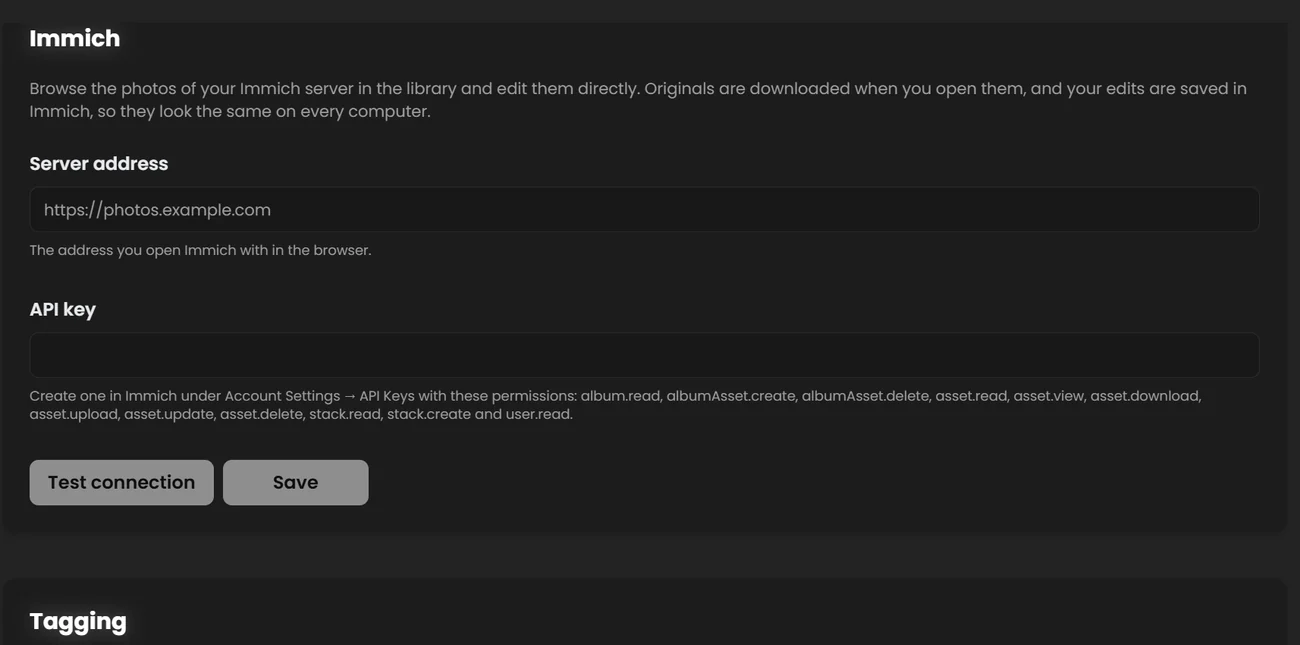
The API key is stored in your operating system's credential store.
Browsing
An Immich section appears in the Sources panel. It contains:
- Timeline, organized by year and month.
- Your Immich albums, including shared ones.
- A status line that shows when you are offline, or how many edits are still waiting to be sent.
Only photos are shown, no videos. If several files are stacked in Immich (for example RAW and JPEG), they appear as one photo and RapidRAW opens the RAW.
Thumbnails load from the server. The original file is downloaded the first time you open a photo, and kept in a local cache (20 GB by default, see Settings → Data Management). Photos that are not downloaded yet show a small cloud icon.
Editing and sync
Edit Immich photos exactly like local ones. Your edits, rating, flag and tags are saved into the photo's metadata on the Immich server every few seconds.
- Open the same photo on another computer and you get the same edit.
- If the photo was edited somewhere else in the meantime, your version is kept and the other version is added as a virtual copy, so nothing is lost.
- If you close RapidRAW while edits are still waiting to be sent, it warns you first.
- When the server is unreachable you can keep working. Edits are sent when the connection is back.
Exporting to Immich
In the Export panel, set Destination to Immich:
| Option | What it does |
|---|---|
| Album | Album the image was opened from (default), No album, or any of your Immich albums. |
| Upload the original too | For photos from a local folder: uploads the original together with its edits, and stacks the export on top of it in Immich. Photos that come from Immich are always stacked on their original. |
Earlier exports stay in the stack, so you can find older versions too.
Copying, moving and deleting
- Dragging or pasting Immich photos into a local folder copies them. Nothing is removed from Immich.
- Remove from Album removes a photo from the real Immich album.
- Delete Image moves the photo to Immich's trash. Delete + Associated trashes the whole stack.
Example: edit on the laptop, finish on the desktop
- On your laptop, open the Immich timeline, cull the last trip with
Shift+P/Xand do quick edits. - At home on your desktop, open the same album. Your picks and edits are already there.
- Finish the edits with the bigger screen and export to Immich with Album the image was opened from. The exports appear in the album, stacked on top of the originals.