 RapidRAW
Editor View
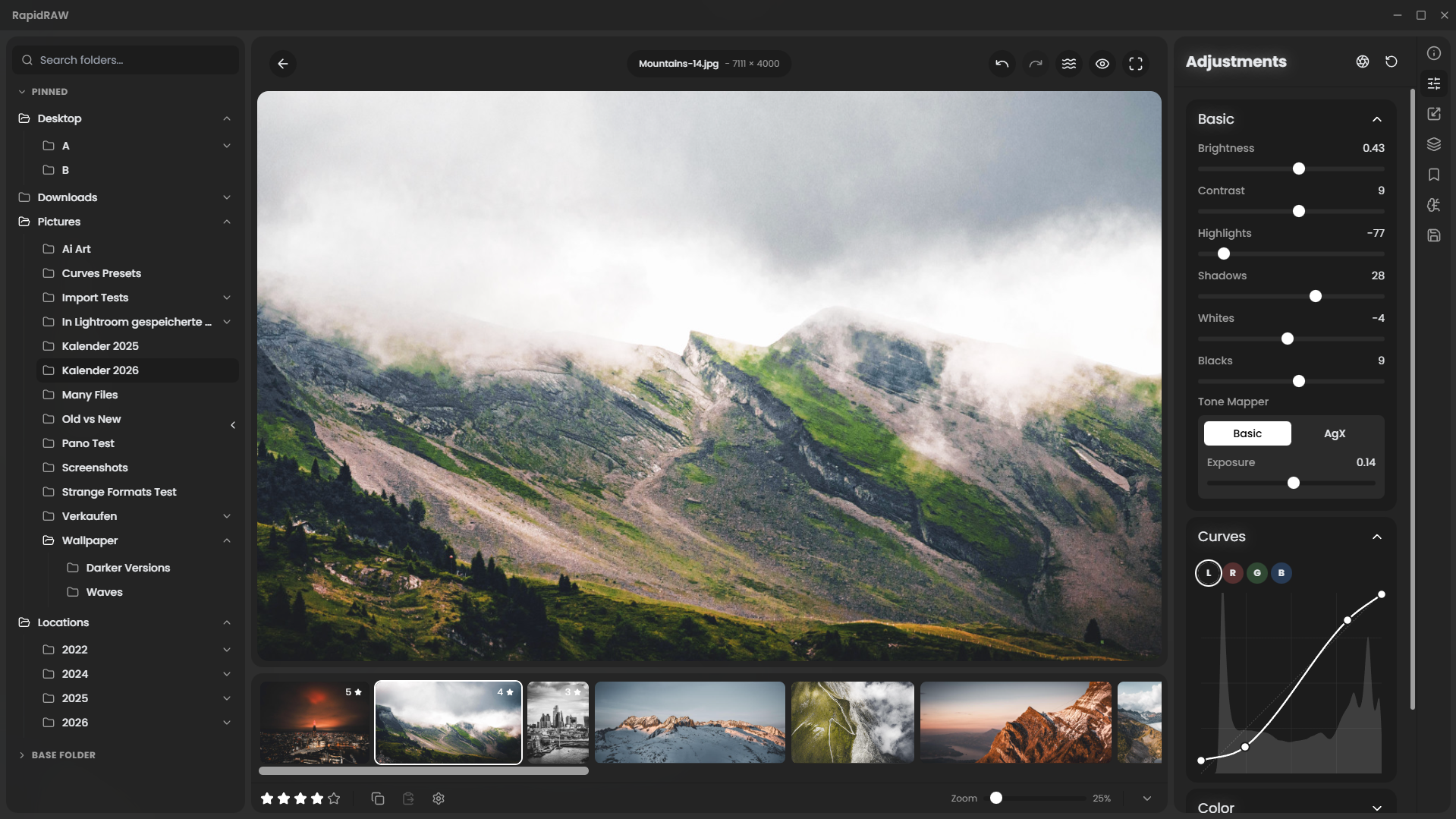
Open a photo with Enter, Space, or double-click. You enter the editor: the canvas takes over the centre of the window, the right panel becomes active, and a filmstrip appears at the bottom.
Layout
| Region | Purpose |
|---|---|
| Canvas | The image. Pan and zoom freely. Composition overlays draw on top. |
| Filmstrip | Horizontal strip of every photo in the current folder. Click to switch. |
| Right panel | Adjustment tabs: Metadata, Adjustments, Crop, Masks, AI, Presets, Export. |
| Top bar | Filename, current zoom level, before/after toggle. |
Panning and zooming
| Action | Shortcut |
|---|---|
| Cycle zoom: fit, 2× fit, 100% | Space |
| Fit to window | Ctrl+0 (or Ctrl+)) |
| 100% (1:1 pixels) | Ctrl+1 (or Ctrl+!) |
| Zoom in (20% steps) | Ctrl++ / Ctrl+= |
| Zoom out (20% steps) | Ctrl+- |
| Zoom in/out 10% (when image selected) | Arrow ↑/↓ |
| Pan horizontally | Shift+Scroll |
| Pan vertically | Alt+Scroll |
| Trackpad zoom | Shift+Alt+Scroll (or pinch) |
Zoom is clamped between 10% and 200% of the image's native pixel size when using arrow-key zoom.
When you're zoomed in and doing adjustments, RapidRAW only renders the visible region at full resolution. This keeps editing fast even on huge RAW files.
Before / after
Press B to toggle the original image. While toggled on the canvas shows the unedited photo. Toggle off to see your edits again.
Filmstrip navigation
Arrow ←/→moves to the previous/next photo without leaving the editor.- Click a thumbnail in the filmstrip to jump to it.
- The filmstrip shows ratings and color labels on each thumbnail.
When you switch photos the right panel updates to show the new photo's adjustments. Edits persist as you switch; RapidRAW saves automatically.
Fullscreen
Press F to toggle fullscreen. The window chrome and panels collapse to give the canvas the entire screen. Press F again (or Escape) to return.
Histogram and waveform
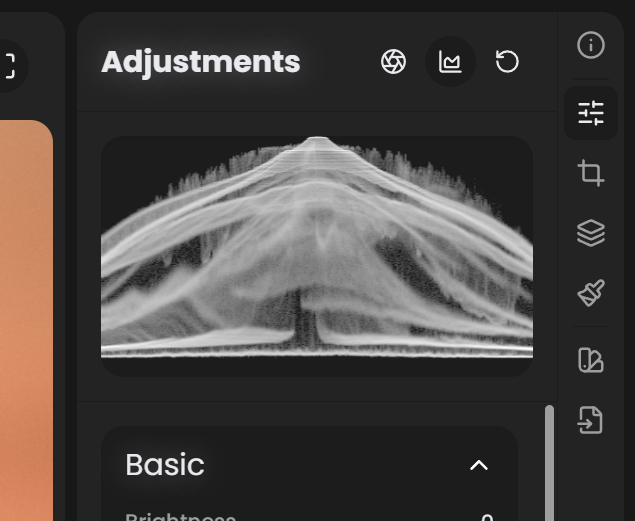
Press A to toggle the image analytics panel. It can display:
- Histogram (RGB and luma distributions).
- Waveform for evaluating exposure across the image horizontally.
- Vectorscope for evaluating color saturation and hue.
- Parade: separate R/G/B traces.
Pick the display you prefer; settings persist.
Switching panels
The right side has tabs for each tool. Single-letter shortcuts open them instantly:
IMetadataDAdjustments (Basic, Color, Curves, Detail, Effects)RCropMMasksKInpaintingPPresetsEExport
See Panels Overview for what each panel does.
Returning to the library
Press Escape. If a mask is active, the first Escape deselects the mask; a second exits to the library. If the Crop panel is open, the first Escape returns to Adjustments; a second exits.