 RapidRAW
Why Your Skies Turn Magenta (and How RapidRAW Fixes It)
What really happens when a camera sensor clips, and how RapidRAW rebuilds the missing colors in blown highlights.
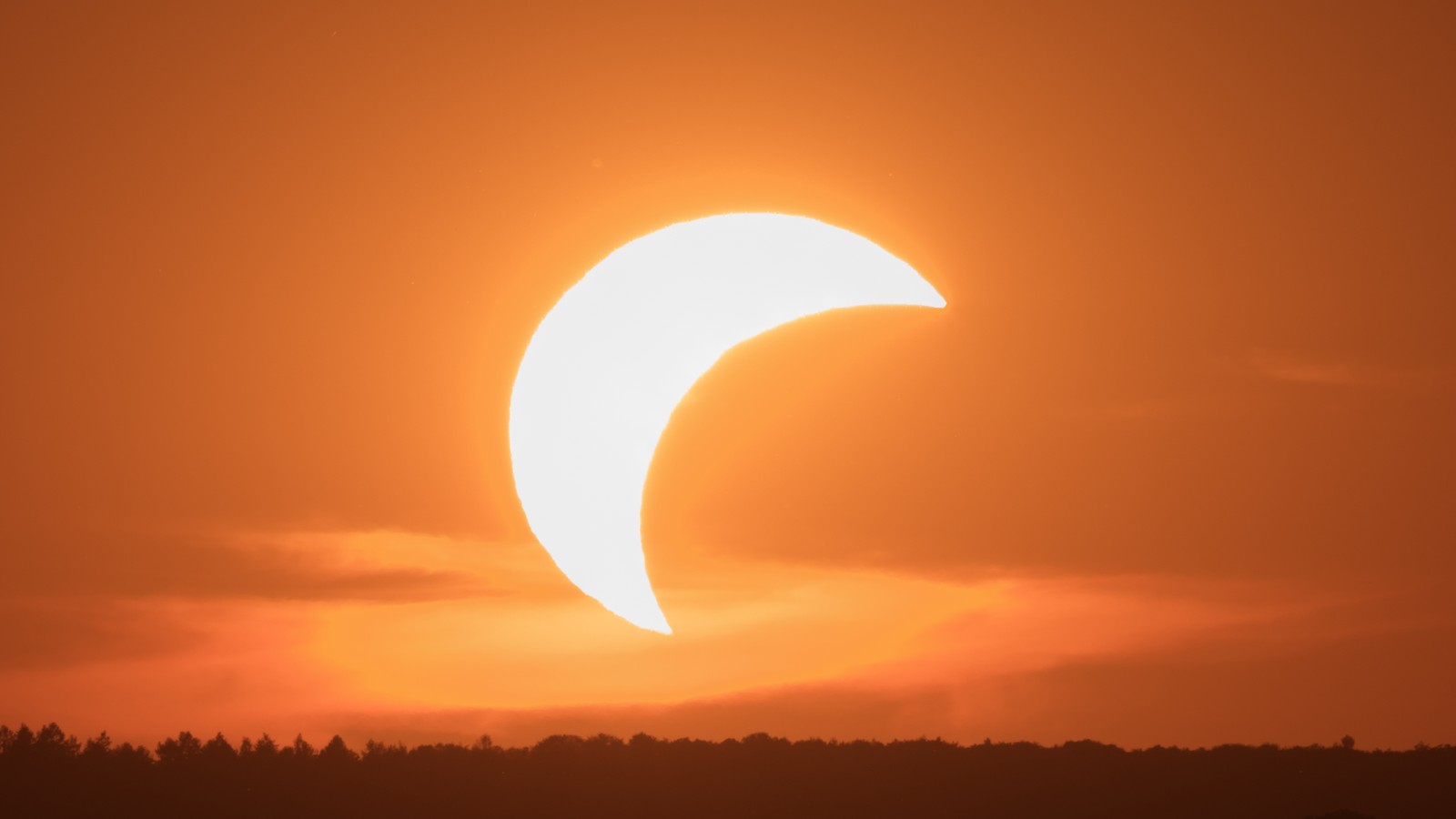
If you have edited RAW files for a while, you have probably seen it. You shoot a sunset, a bright lamp or a white cloud, and when you pull down the highlights in your editor, the brightest part turns into a strange flat blob. Sometimes it is pink or magenta. Sometimes it is a hard yellow ring around the sun. Sometimes it is cyan.
I rewrote RapidRAW's highlight handling several times over the last few months. This post explains what is actually going on, and how the current version deals with it.
Clipping doesn't happen all at once
A camera sensor has three kinds of pixels: red, green and blue. Each one can only collect a certain amount of light. When it is full, it stops counting. That is clipping.
The important part: the three channels don't fill up at the same time. Green pixels are the most sensitive on almost every sensor, so they usually fill up first. In a warm sunset, red follows soon after, while blue still has plenty of room. The sensor then records something like "green: maximum, red: maximum, blue: some." The true values were higher, but the camera can't know by how much.
Then white balance makes it worse. To make white look white, the editor multiplies the channels by different amounts. Green is usually multiplied the least. So if all three channels are clipped, after white balance, red and blue end up higher than green. Full white becomes pink. That is where the famous magenta highlights come from.
A naive converter just clips everything above white. The result is exactly what you see on the left:
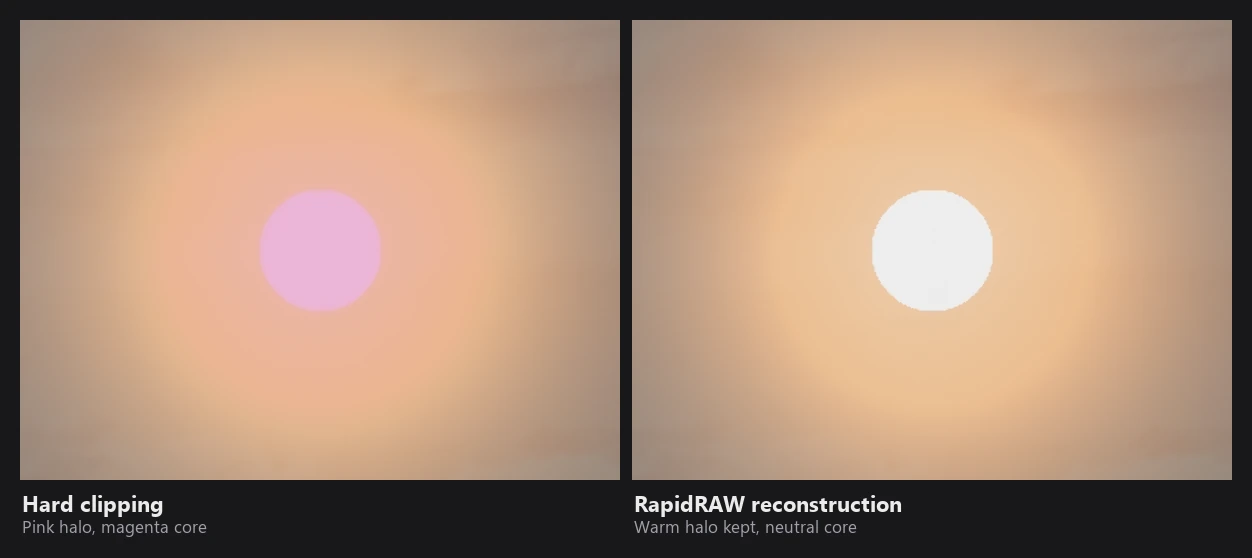
To show this cleanly, I generated a test RAW file with a bright artificial sun, ran it through RapidRAW, and pulled the exposure down so you can see inside the highlights. Same file on both sides. The left side is clipped too early for reconstruction to kick in, the right side is RapidRAW's reconstruction.
Step 1: find where the sensor really clips
You would think the RAW file tells you the clipping point. It does, but many cameras actually saturate a bit below the value written in the file. If you trust the file, you miss the clipping.
So RapidRAW looks at the data itself. It builds a histogram of each channel near the top and searches for a pile-up: lots of pixels with exactly the same maximum value. That plateau is where the sensor really clipped.
Step 2: learn the color from the edges
Inside a blown area, at least one channel is missing. But at the edges of that area, there are pixels that are bright but not clipped yet. They still know the true color of that light.
RapidRAW looks at those edge pixels and learns how each channel relates to the other two. For a sunset that might be: "red is usually about this much higher than green and blue here." It stores this as a smooth map over the image, so every blown area gets its own local color model.
Here is what that looks like for the test sun. Because I generated this RAW file myself, I know exactly which channels clipped where:
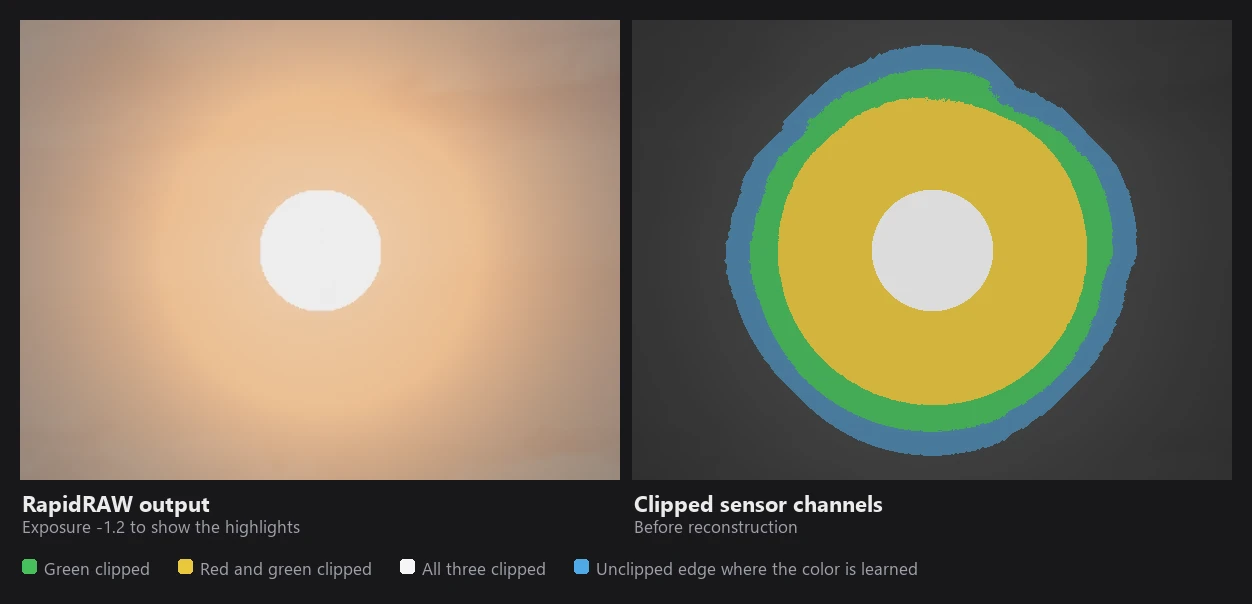
Green gives out first, in the widest ring. Red and green are both gone in the wide band around the sun, and only the core has lost all three. The blue ring outside is where the color is learned: those pixels are bright, but every channel still has real data.
Step 3: rebuild the missing channels
For every pixel close to clipping, RapidRAW predicts what the clipped channel should be from the other two, plus the learned difference. Two rules keep this safe:
- The rebuilt value is never darker than what the sensor recorded.
- The blend starts softly at 90% of the clip level, so there is no visible line where reconstruction begins.
This is what turns the hard yellow ring around a sun into a smooth orange halo.
Step 4: keep light sources white
There is one case where you don't want strong color: the light source itself. When all three channels are almost clipped, like in the middle of the sun, there is barely any color information left. Pushing a strong color into it looks fake.
So as pixels get closer to full clipping, RapidRAW gradually pulls the rebuilt color back toward neutral. Fully blown cores get only a gentle tint borrowed from their surroundings. The sun ends up a warm white, not pure white and not magenta.
The easiest way to see steps 3 and 4 is to follow the three channels along a line straight through the sun:
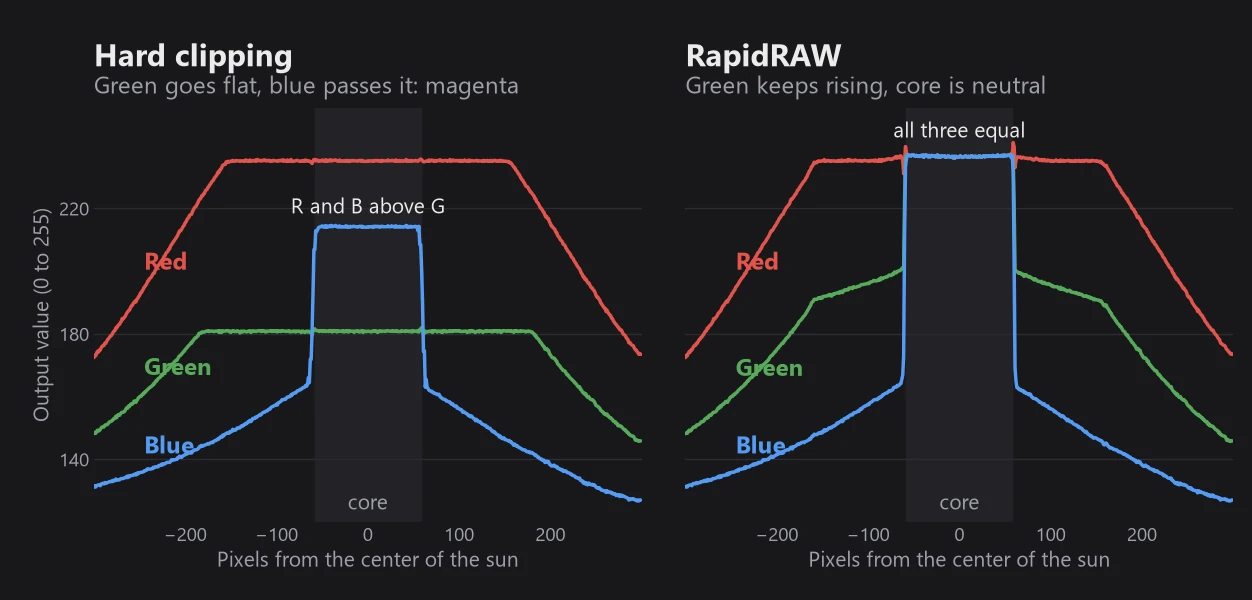
On the left, green hits its ceiling far from the sun and stays flat. In the core, blue climbs above it, and red and blue over green is exactly what magenta is. On the right, green keeps rising toward the sun because it was rebuilt from the other channels, and in the core all three meet at the same value: neutral white.
On a real photo
Wojciech Wolas shared this RAW of a partial solar eclipse with me. It is a great test, because the red channel clipped in a wide ring around the sun.
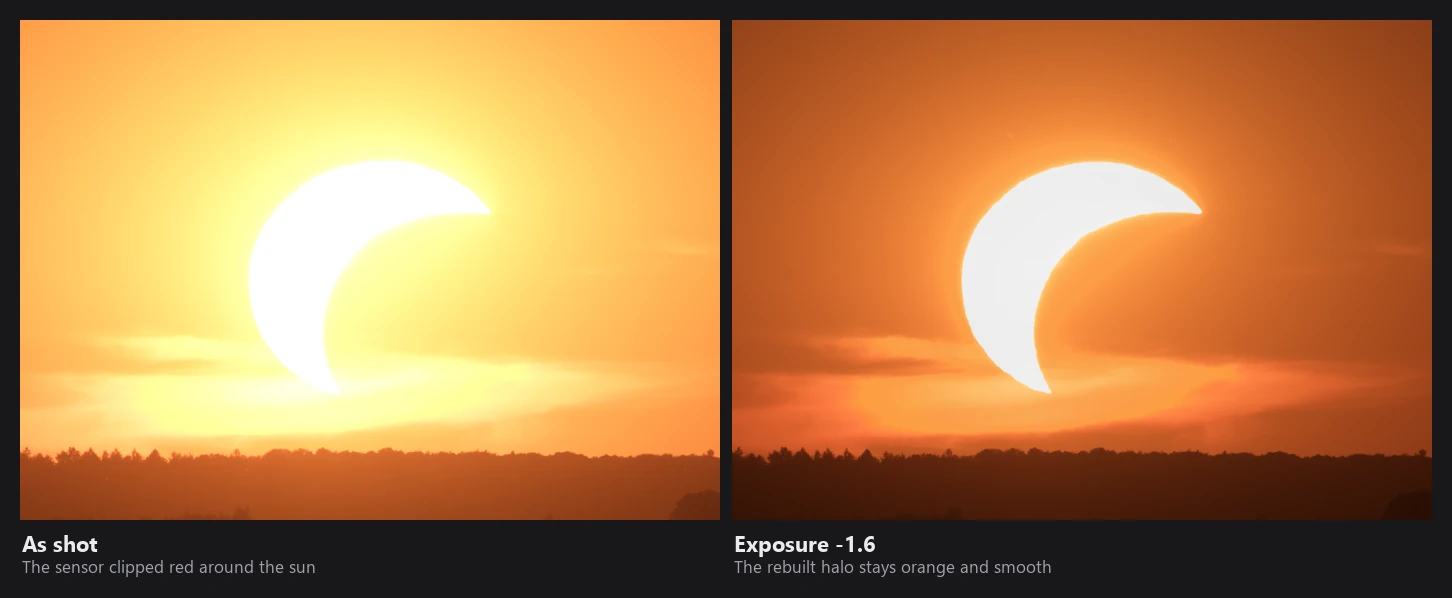
On the right, I pulled the exposure down 1.6 stops. Normally that is where clipped highlights fall apart. Here the halo stays orange and fades smoothly, because the color was rebuilt during decoding.
The tone mapper does the rest
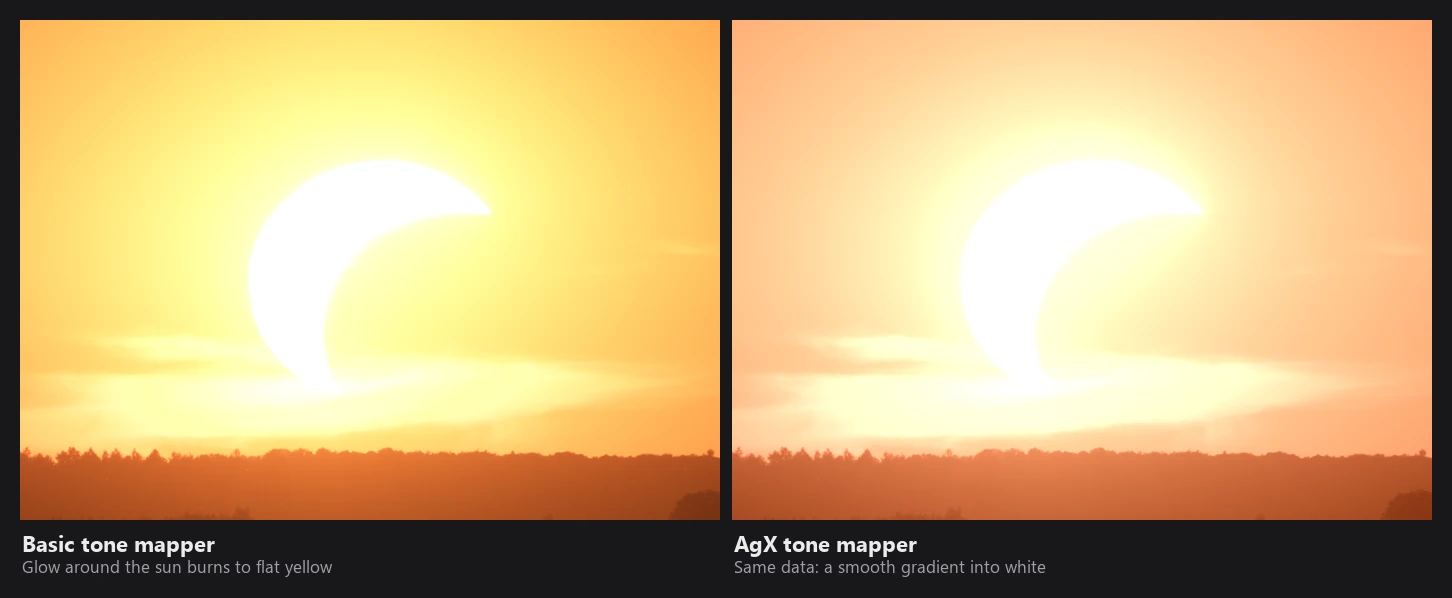
Reconstruction makes sure the data is right. How it looks on screen is up to the tone mapper. With RapidRAW's AgX tone mapper, very bright colors roll off softly toward white instead of clipping each channel separately. (I wrote about how I almost got AgX wrong in an earlier post.)
You don't have to do anything
All of this happens automatically when RapidRAW opens a RAW file. There is no setting to turn on. Your Highlights slider then works on data that has real color in it, which is why recovering a bright sky in RapidRAW gives you color and texture instead of grey.
If you want the exact math, the RAW Processing page of the new Technical Reference goes through every step, with the formulas.
Eclipse photo by Wojciech Wolas.