 RapidRAW
Relight: Adding Real Light to a Flat Photo
How RapidRAW turns a single photo into a 3D surface, and lets you light it like a studio scene after the fact.
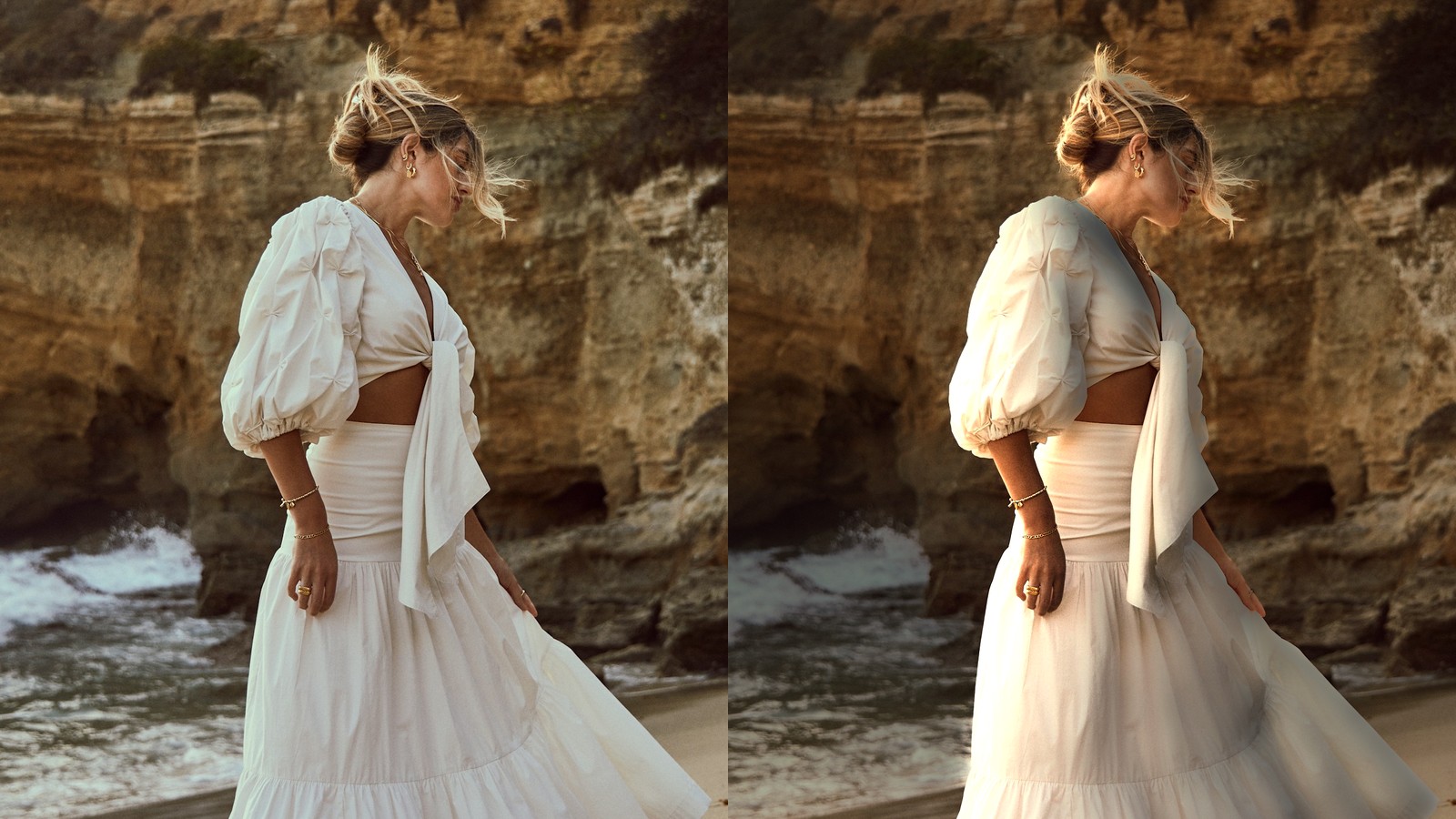
Light is the one thing you can't really change after you press the shutter. You can make a photo brighter or darker, warmer or cooler, but if the light came from the wrong side, it stays on the wrong side. A face that is flat and evenly lit will stay flat, no matter how many sliders you move.
Most editors fake it with a radial mask: brighten a circle around the face, darken the rest. That works a bit, but it doesn't look like light. Real light falls on surfaces. It hits the side of a face that points toward it and misses the side that points away. A brightened circle doesn't know what a cheek or a nose is.
So I added Relight. It lets you put real lights into a photo, and they behave like real lights.
Teaching a photo what shape it has
To light something properly, you need to know which direction every surface is facing. A 3D renderer gets this for free, because it has the 3D model. A photo only has pixels.
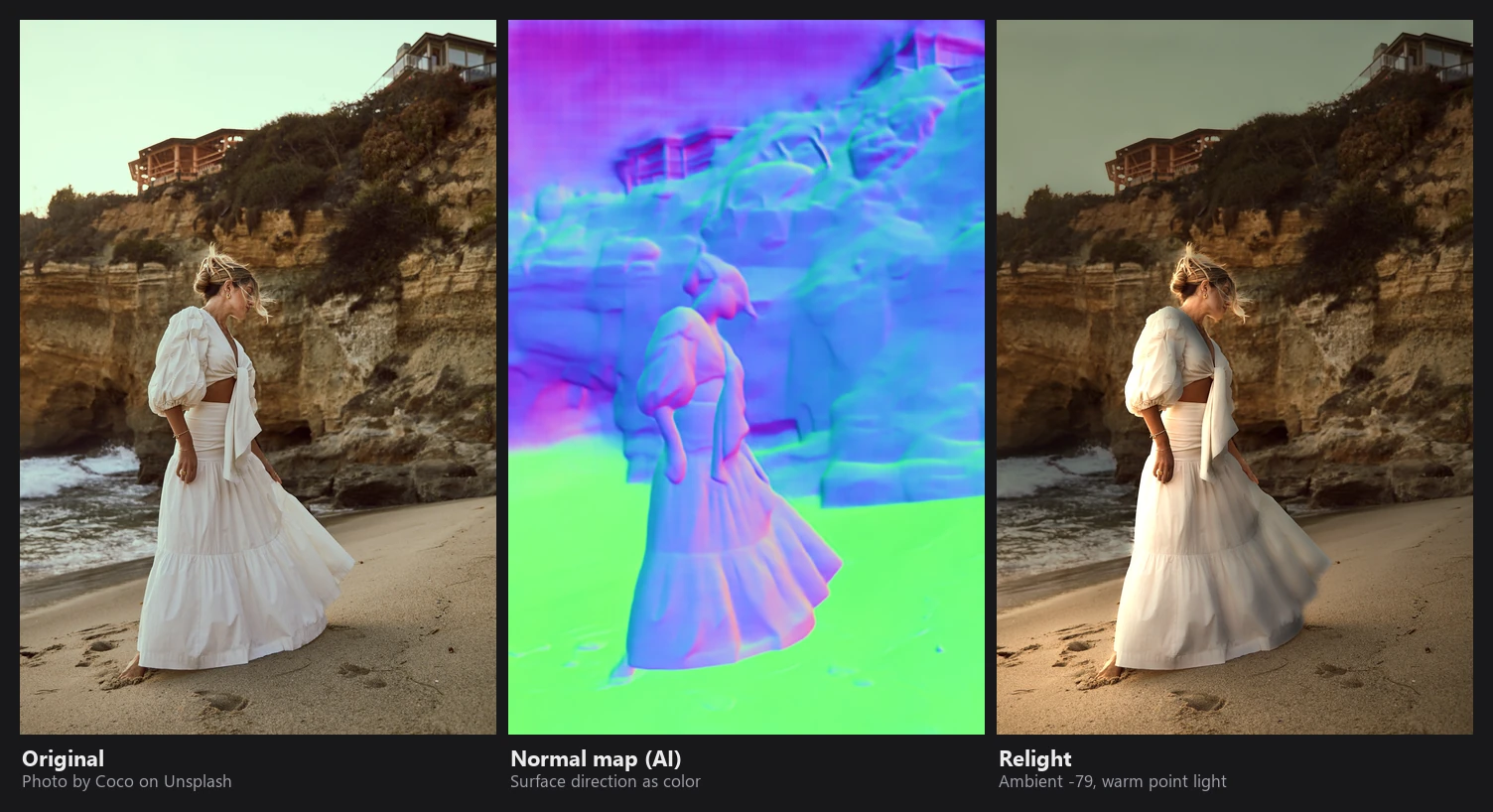
This is where AI helps. RapidRAW runs a model called MoGe-2 on your photo. It looks at the image and estimates, for every pixel, which way the surface is pointing. The result is a normal map, the colorful image in the middle above. The colors are just directions: green surfaces face up (the sand), pink and blue surfaces face left, right or toward the camera. You can see the folds of the dress and the shape of the cliff in it.
The model also gives a rough depth for every pixel, so RapidRAW knows what is near and what is far away.
There is one problem: the model works on a small version of the photo, at most 768 pixels on the long side. If you just stretched that map to full size, the light would bleed over edges, and the outline of the person would glow. So RapidRAW upsamples the map with a guided filter that uses the full resolution photo as a guide. Where the photo has an edge, the map gets the same edge. Where the photo is smooth, the map stays smooth.
Here is everything Relight works with, taken apart:
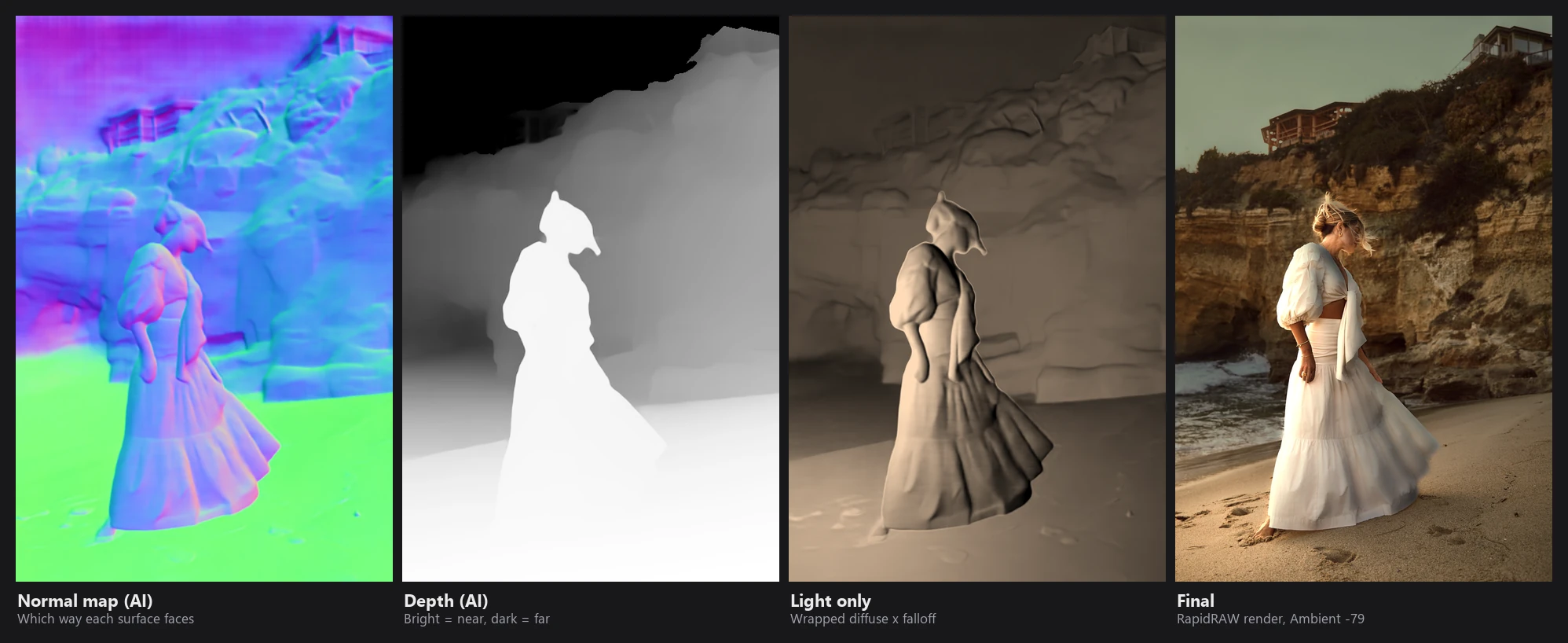
The third panel is the light on its own: how much light each surface receives from the point light, before it is multiplied with the photo. The sleeves and the dress facing the light on the left catch the most, and the sides turned away fade out. RapidRAW never shows this pass by itself, so I computed it from RapidRAW's own normal map with the same formula the code uses.
Lighting it
Once every pixel has a direction, lighting is basic 3D math. For each light, RapidRAW checks how much each pixel faces it:
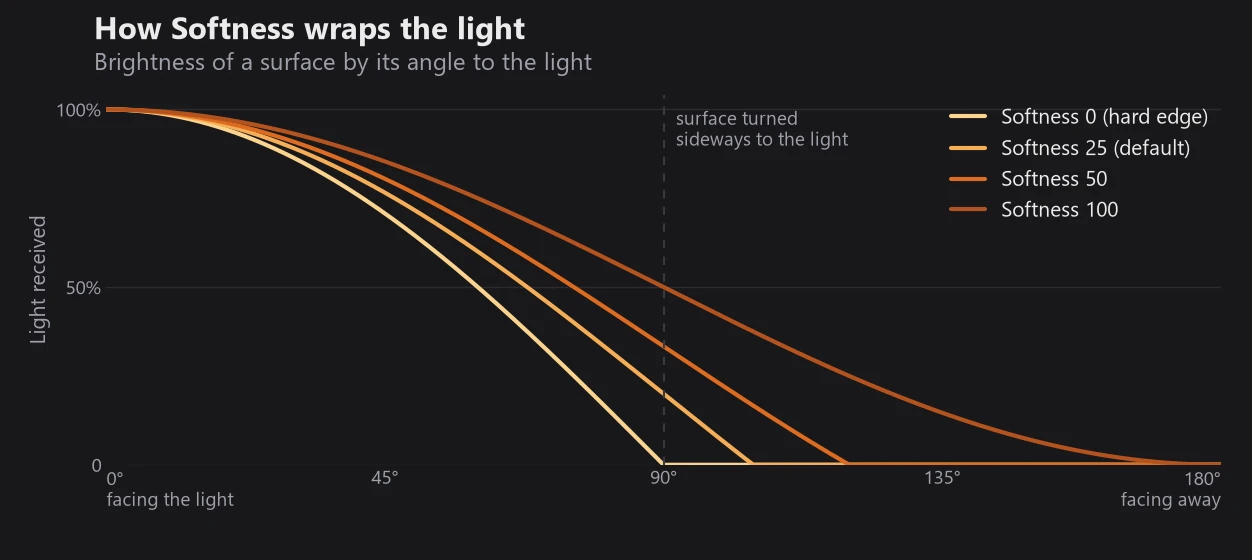
- Diffuse light uses a "wrapped" version of the classic Lambert model. Normal Lambert lighting has a hard edge where a surface turns away from the light. Wrapping lets the light bend a little around curves, which looks like a large, soft light source. The Softness slider controls how much it wraps.
- Shine adds specular highlights, the small bright spots you see on glossy skin or metal.
- Ambient controls the light that is already in the photo. Pull it down and the scene gets darker, so your new light has room to stand out. In the photo above, Ambient is at −79, which turns a bright beach into a moody evening.
This chart shows what Softness does. The horizontal axis is the angle between a surface and the light. With Softness at 0, a surface turned exactly sideways gets no light at all, which gives the hard edge of classic Lambert lighting. Higher values let the light reach further around, like a bigger light source:
There are three kinds of lights:
- Point: a bulb. Light spreads in all directions and gets weaker with distance.
- Spot: a point light with a cone, like a stage light. You can aim it and soften its edge.
- Directional: the sun. It comes from one angle and doesn't fade.
Light color is normalized, so a warm or blue light doesn't suddenly make the photo brighter or darker. Only the color changes.
Shadows
A light without shadows looks pasted on. When Shadows is on, RapidRAW traces a short path from every pixel toward the light, 64 steps across the depth map. If something closer to the camera blocks that path, the pixel is in shadow. The shadow map is then softened and upsampled with the same guided filter, so shadow edges follow the real outlines in the photo.
Shadows work best on clear 3D shapes. Here I placed a warm point light inside the chandelier. Look at the pillar and the boxes: each one throws its own shadow across the wall behind it, in the direction you would expect from that light.
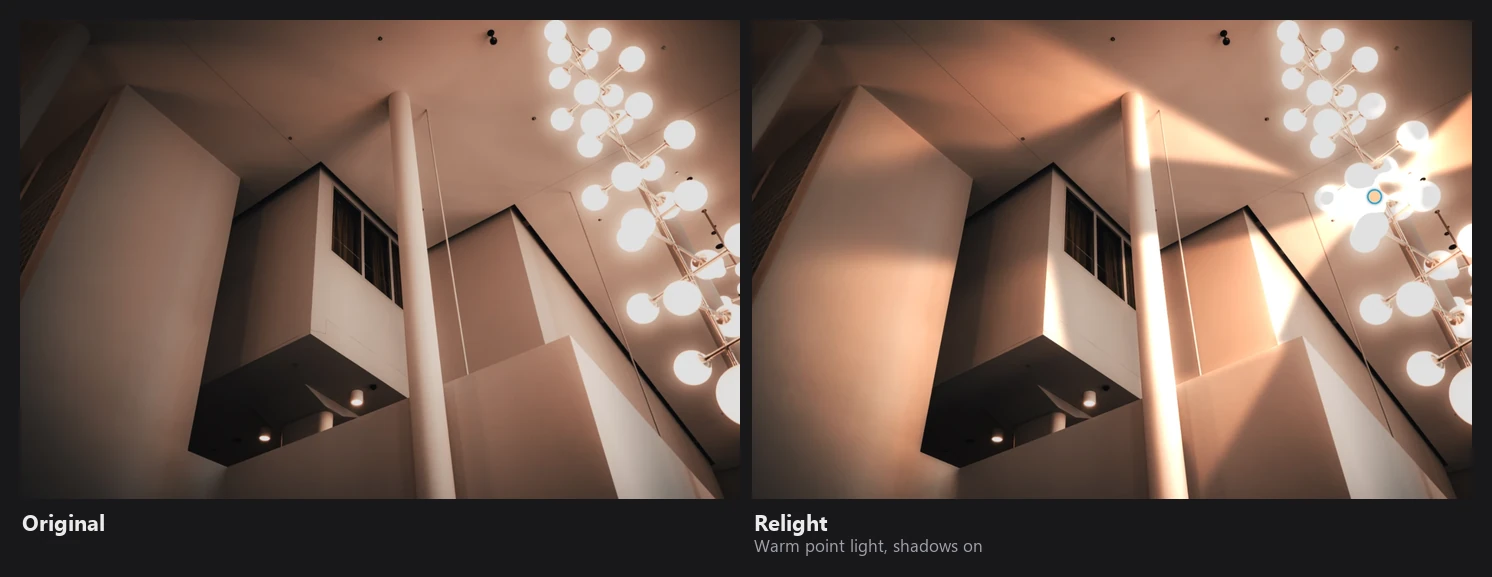
This is a simple trick compared to a real 3D renderer, and the depth from a single photo is never perfect. But for most portraits and objects, it is enough to make the light feel like it belongs there.
Moving the lights by hand
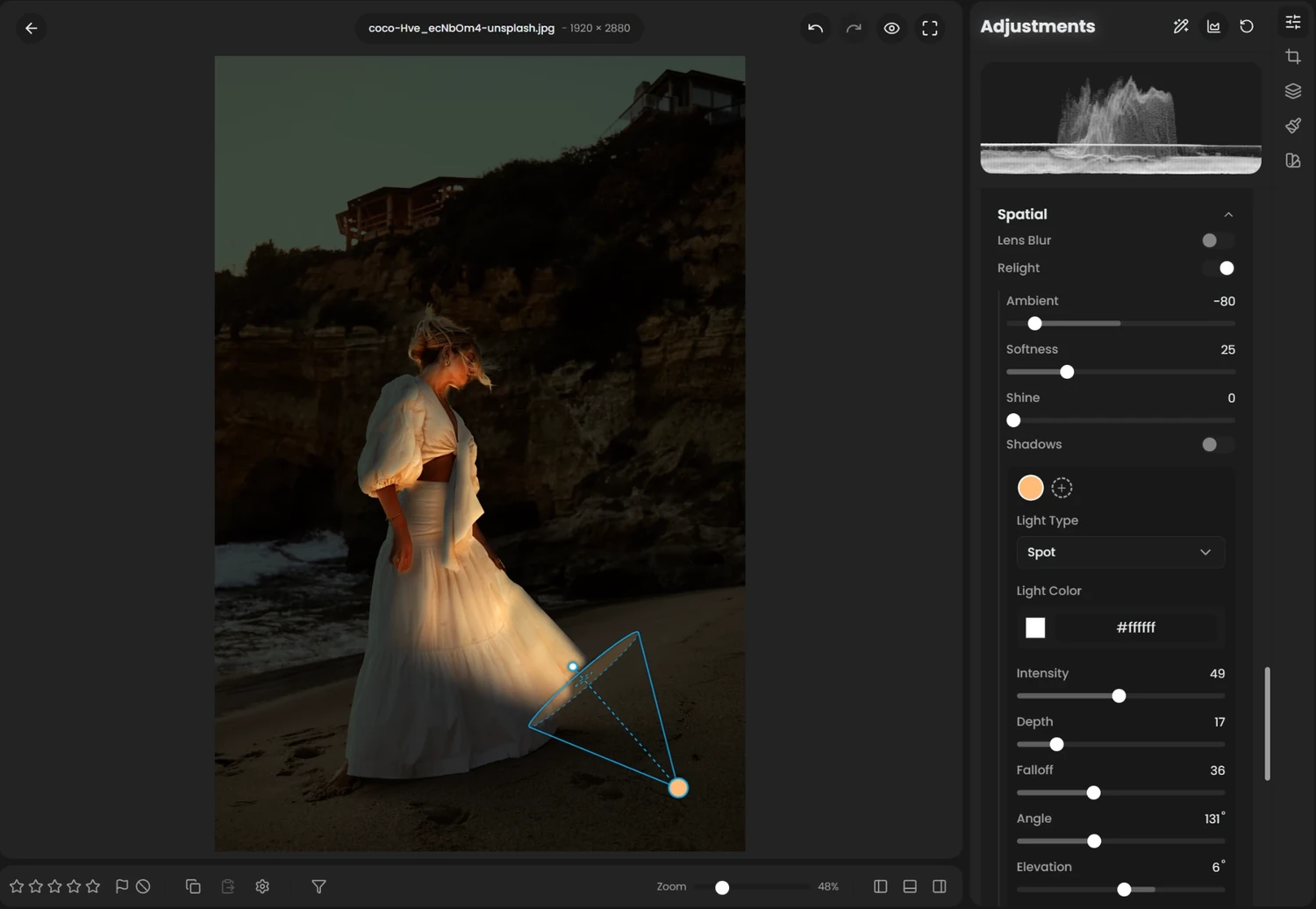
Sliders for angle and elevation are hard to use for something this visual. So every light has a handle right on the photo. You drag it to where the light should be. Spot lights get a second handle to aim the beam, and you can see the cone drawn on the image.
Why it runs before everything else
Relight happens early in the pipeline, in linear light, before your exposure, color and tone adjustments. That means your edit treats the new light exactly like light that was there when you took the photo. If you add a warm light and then cool down the white balance, the light cools down too. If you push the highlights, the lit areas react like any other bright area.
The normal map is only computed once per photo and saved to disk. After that, moving a light is fast. If you crop or rotate the photo, the map follows the geometry, and the directions are rotated with it.
Try it
Relight is in the Effects section under Spatial. Turn it on, wait a few seconds for the normal map, then click + to add a light. A good starting point for a portrait: Ambient around −40, one warm point light placed slightly above and to the side of the face, Softness at 25.
If you want all the details and formulas, they are in the Depth Effects page of the new Technical Reference, and the controls are explained in the Effects docs.
Sample photo by Coco on Unsplash.